
1. Accessing the Deepvue Terminal
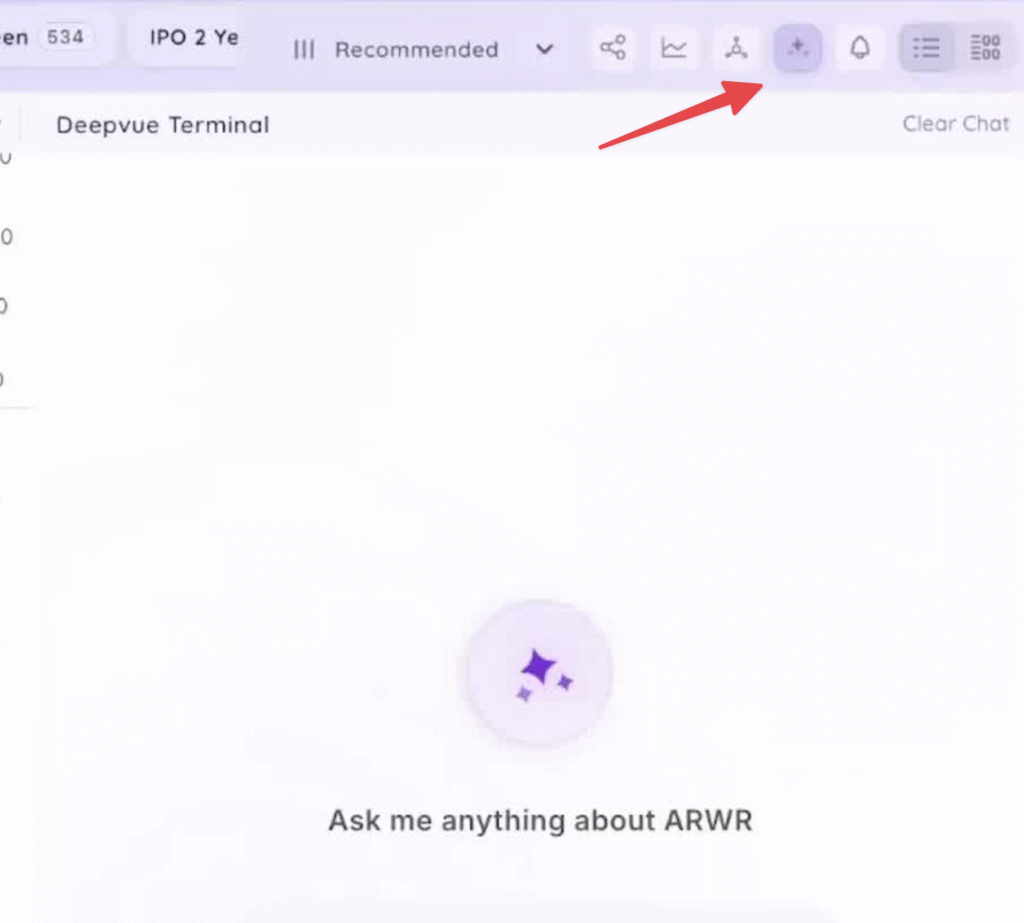
- Locate the icon in the top right corner of the platform.
- Click the icon to open the terminal, which can be resized.
2. Using Prompts in the Terminal
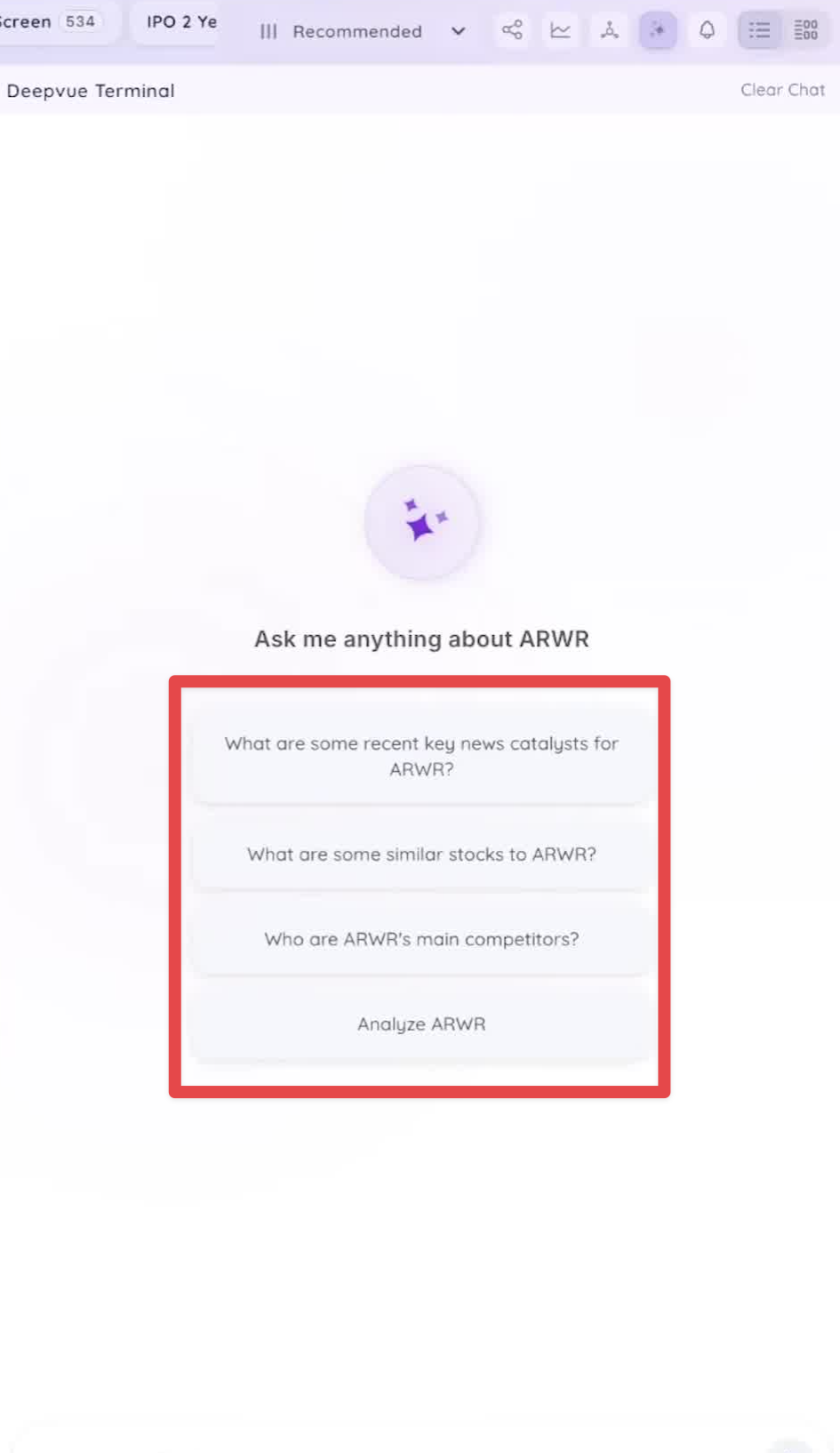
- Default chat starts with key prompts for stock research.
- Future updates will include a prompt library based on user suggestions and trader insights.
3. Interacting with Stock Data
- The terminal updates based on the current stock symbol being viewed.
- Users can select prompts or type their own questions.
4. Exploring Related Stocks
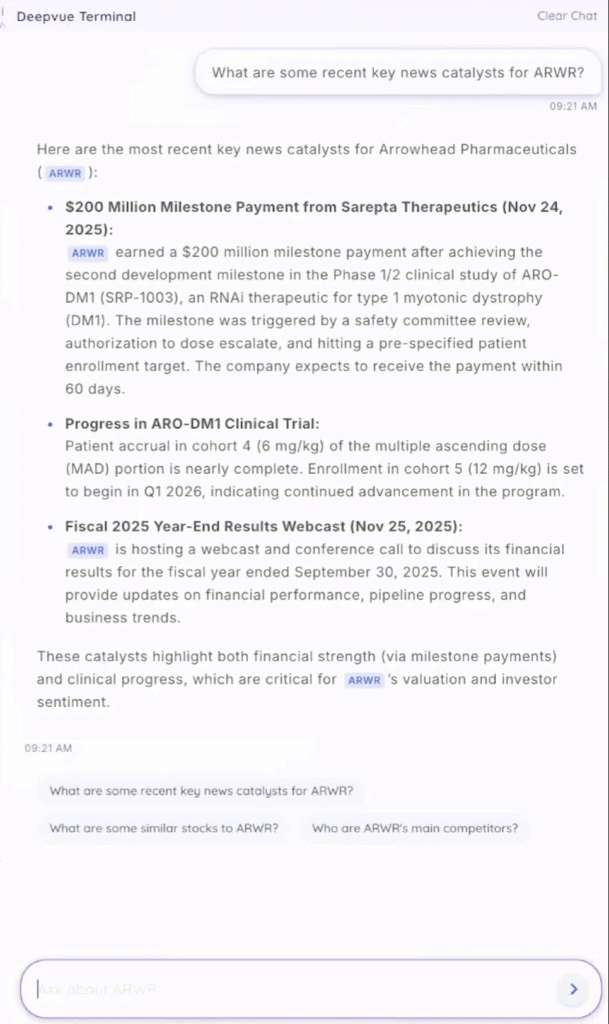
- Users can inquire about related stocks or themes (e.g., semiconductor names).
- Clickable tickers in responses allow for quick access to charts.
5. Analyzing Earnings Reports
- Example: Requesting a summary of a recent earnings report (e.g., LMND).
- The terminal can provide concise analyses of key financial metrics.