
This article will walk you through the login process and how to access your account details on the Deepvue platform.
Logging In to Deepvue
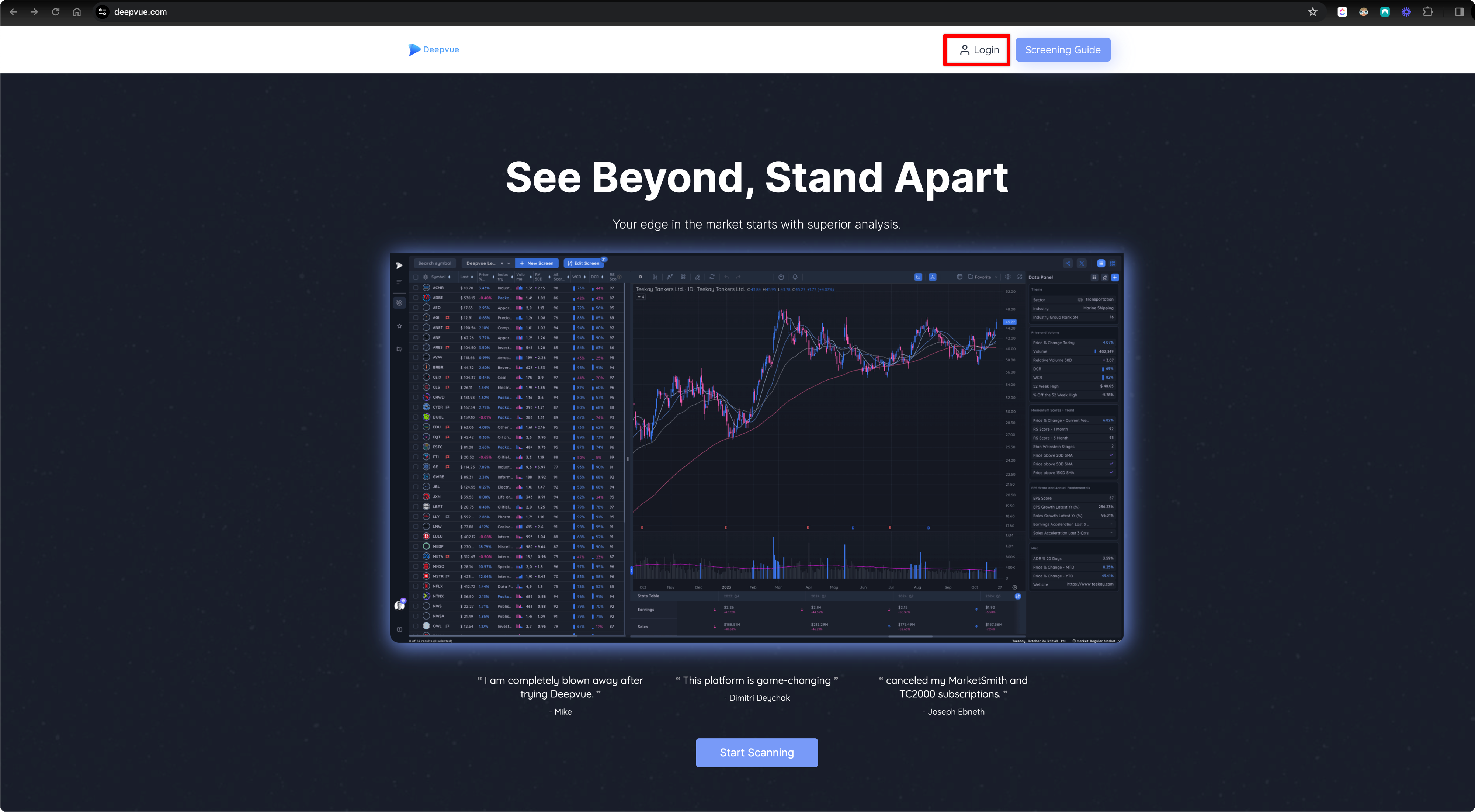
To log in, please visit Deepvue.com and click on the login button.
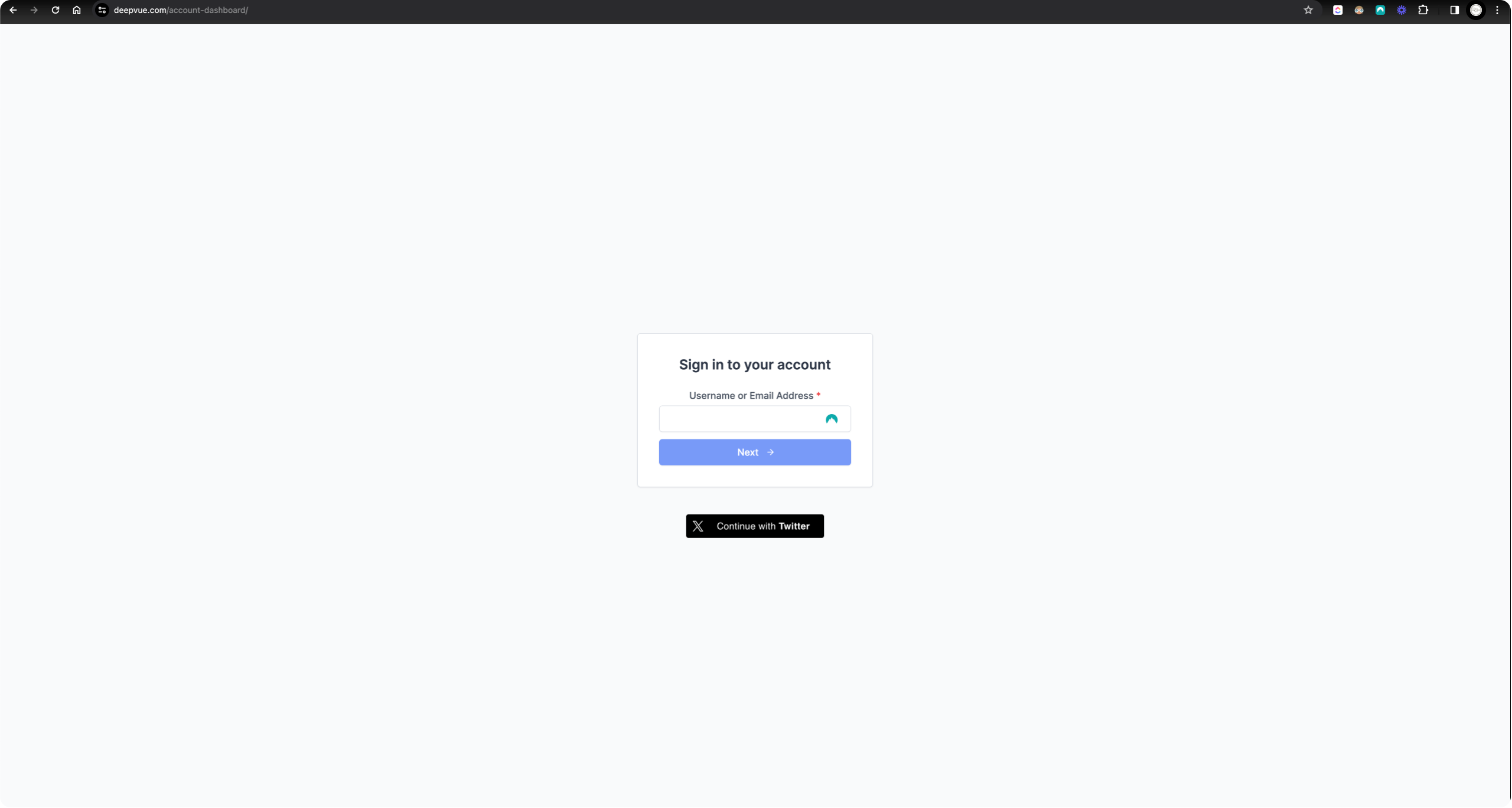
2. This will take you to the Deepvue Login Screen. The first time you log in, you’ll need to request a login code.
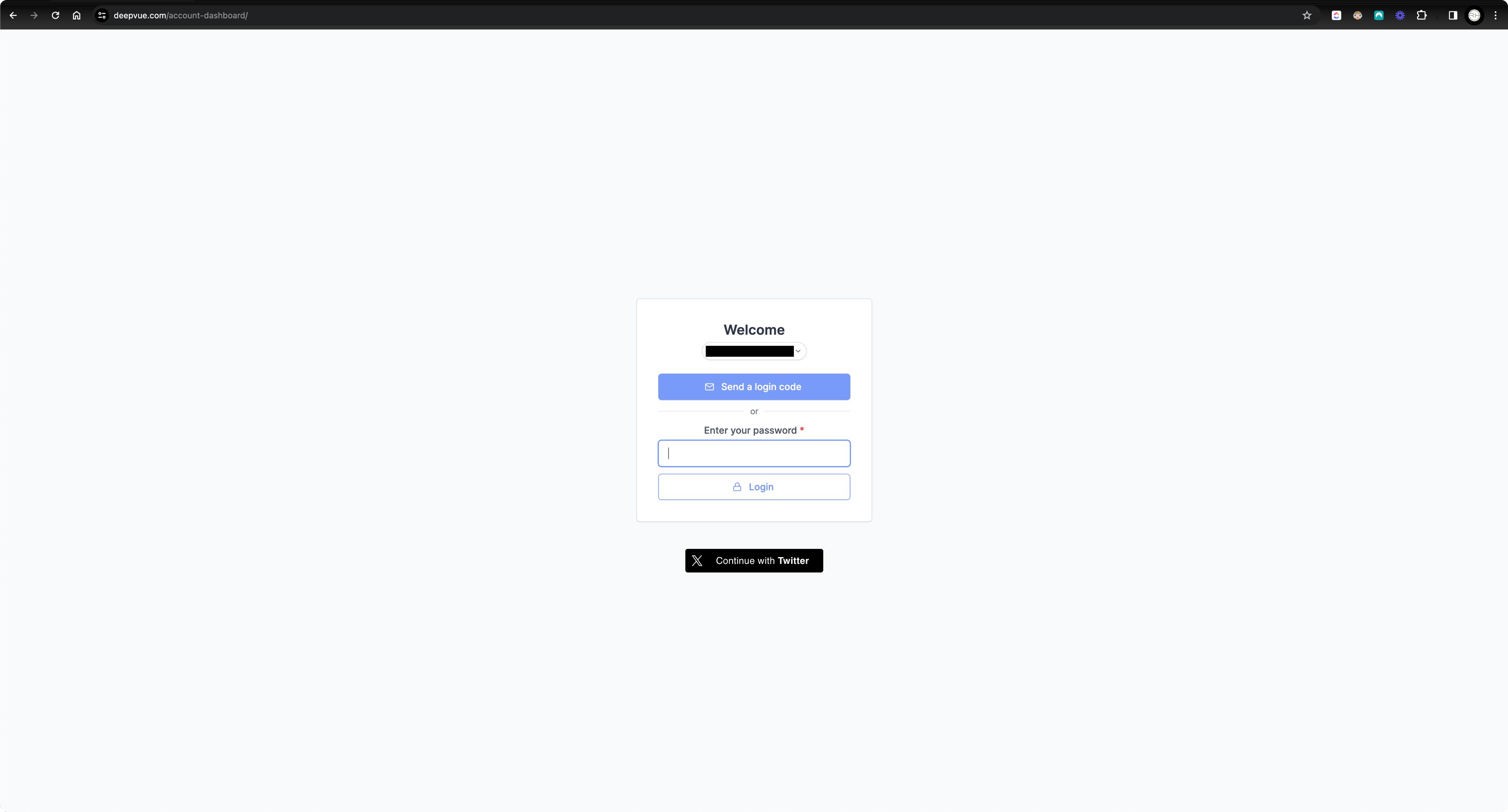
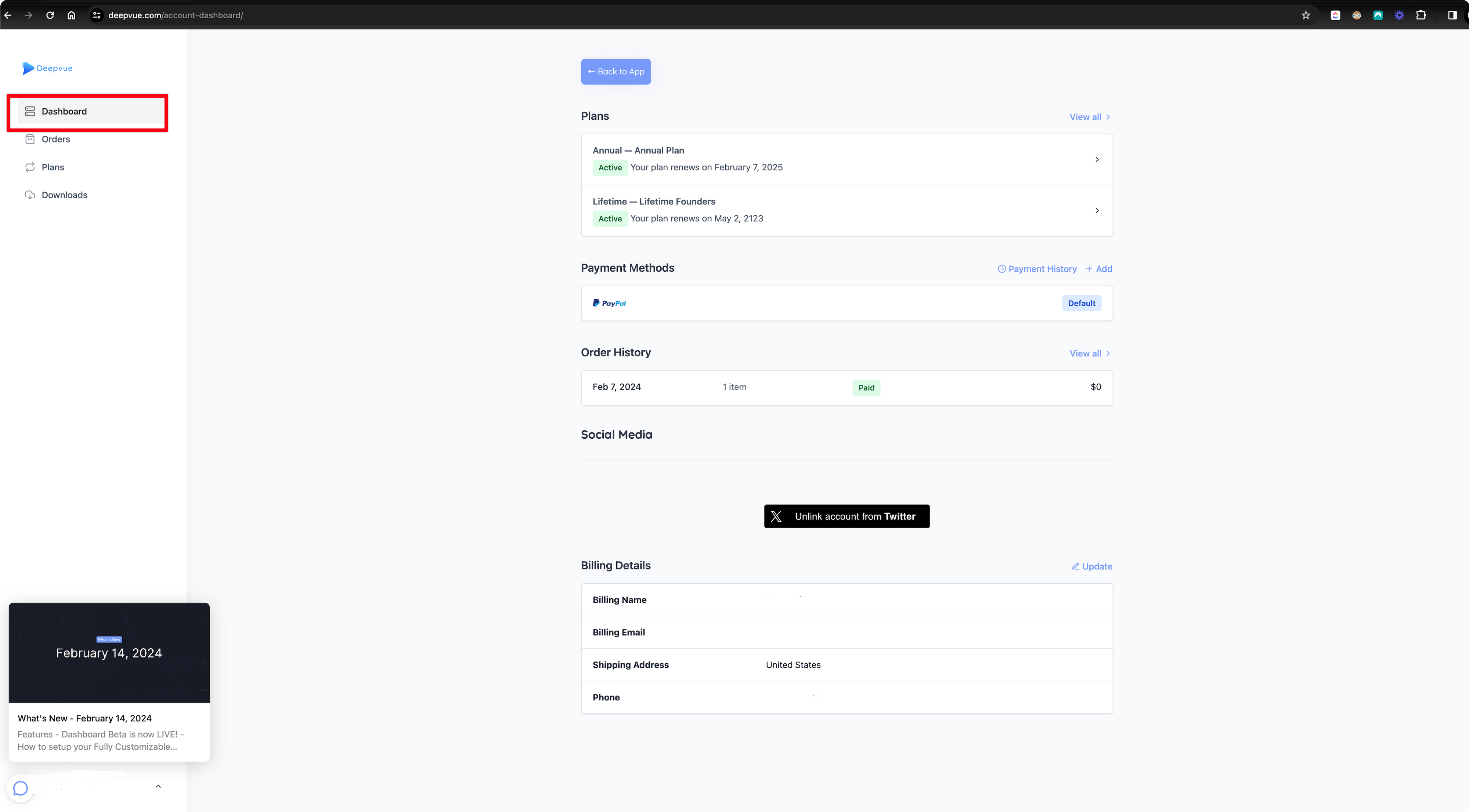
3. Once you have logged in, you will be redirected to your new Deepvue Account Dashboard.
Navigating the Account Dashboard
Once you’re in the Deepvue Account Dashboard, you will have access to the following:
Plans: Here, you can see your current plan and its active period. If there are any discrepancies, contact Deepvue support at hello@Deepvue.com and we will gladly rectify any issues.
Payment Methods and History: Add or review your payment methods and transaction history.
Order History: View your order history.
Social Media: If you haven’t done so already, you can link your Deepvue account with your Twitter account.
Billing Details: Review and update your billing details.
Downloads: Access any downloads associated with your account.
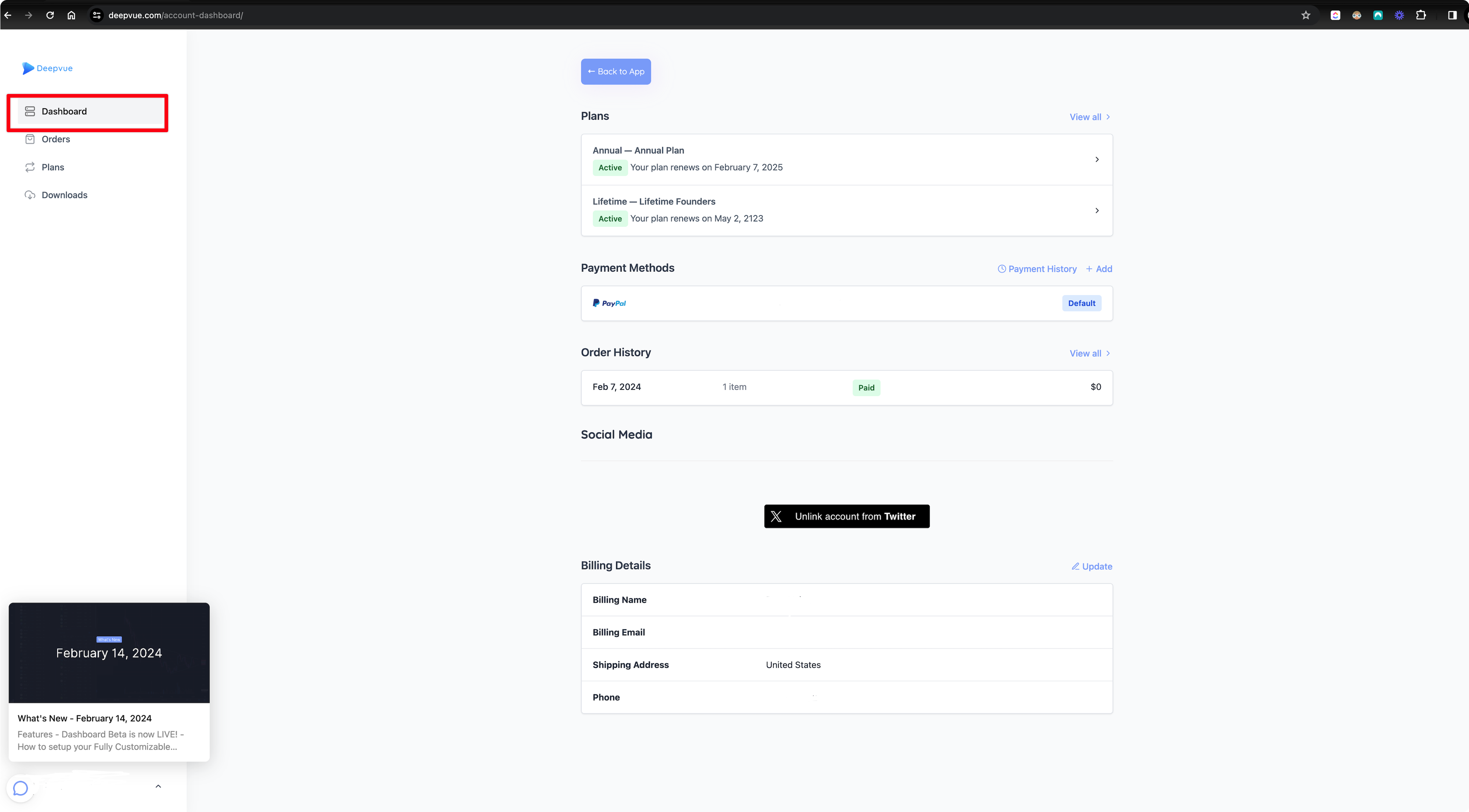
Furthermore, from the menu in the bottom left corner you can update your account password, display name and other important details. In this menu you can also update your billing information.
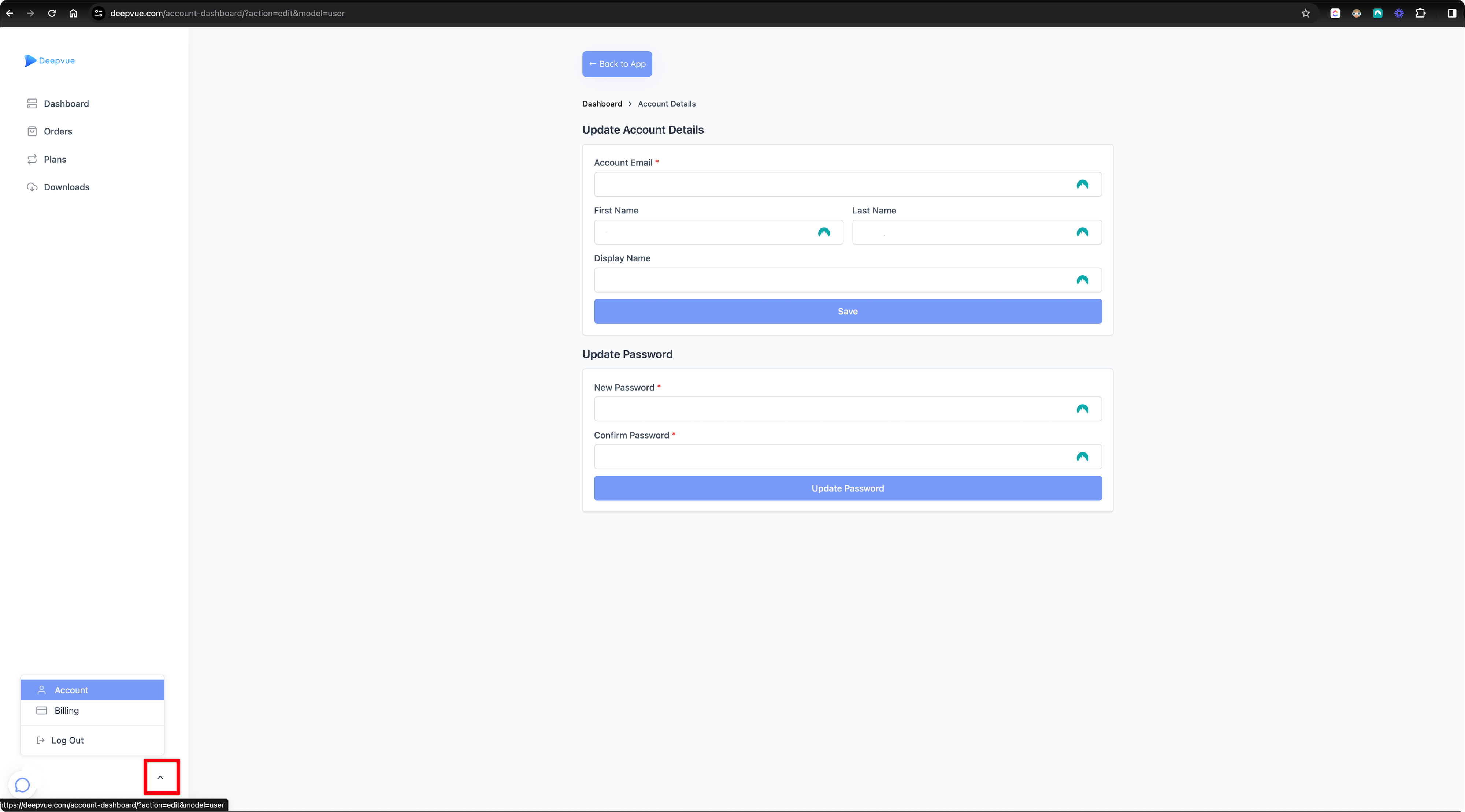
When you are done setting up your profile, simply click on the ‘Back to App’ button at the top center of your screen to return to the Deepvue app from the Account Dashboard. This will load the app in separate browser widow for you. The browser window with the account dashboard can then be closed.