
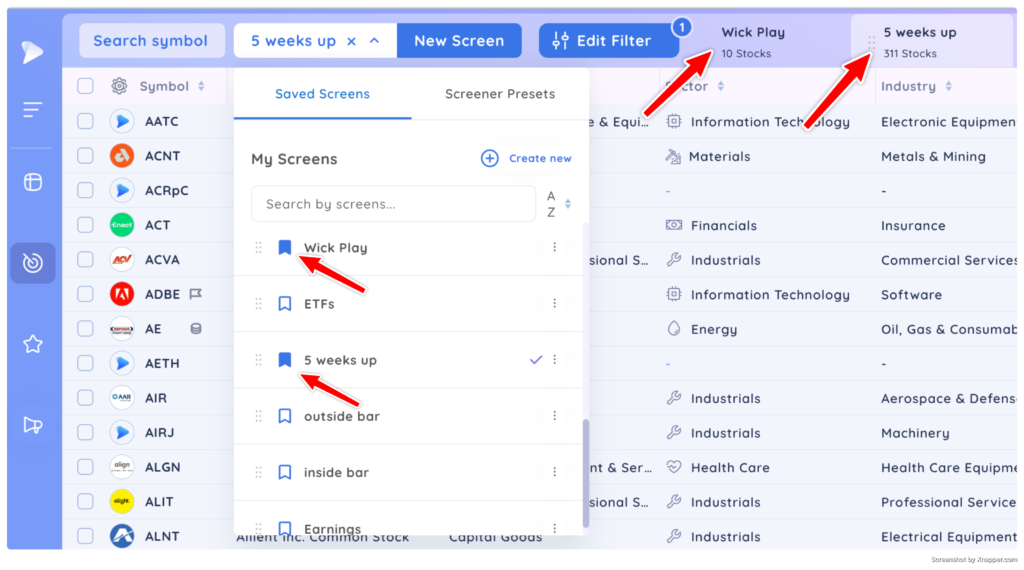
You can save your favourite screens or screener presets as bookmarks so they appear as tabs in the Screener module header. To bookmark a screen, click the bookmark icon in the dropdown menu.
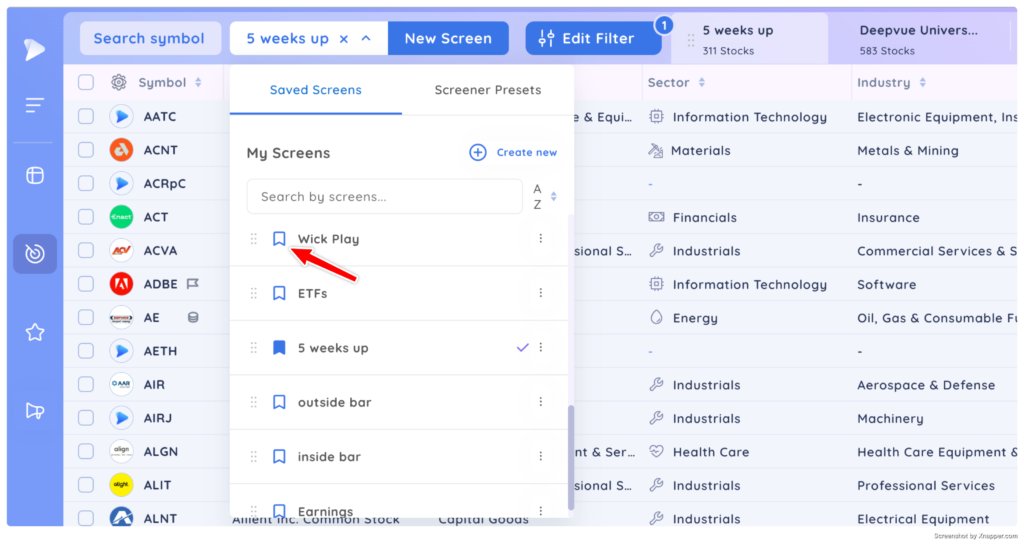
To remove a bookmarked screen, simply unselect the bookmark icon next to the screen
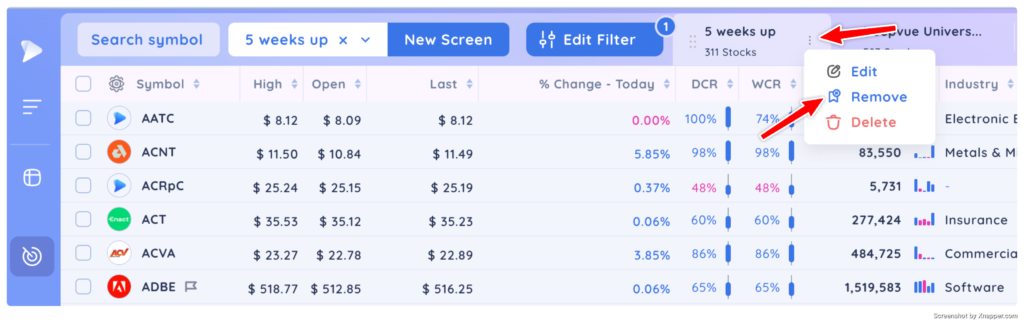
You can also click the 3 dot options menu on the tab of the screen you want to remove as a bookmark and click remove
NOTE: Any previously starred screens to turn them into watchlists will automatically be converted to bookmarked screens with this new feature. They will now appear in the screener module as tabs instead of in the watchlist module.