Creating a Column Set
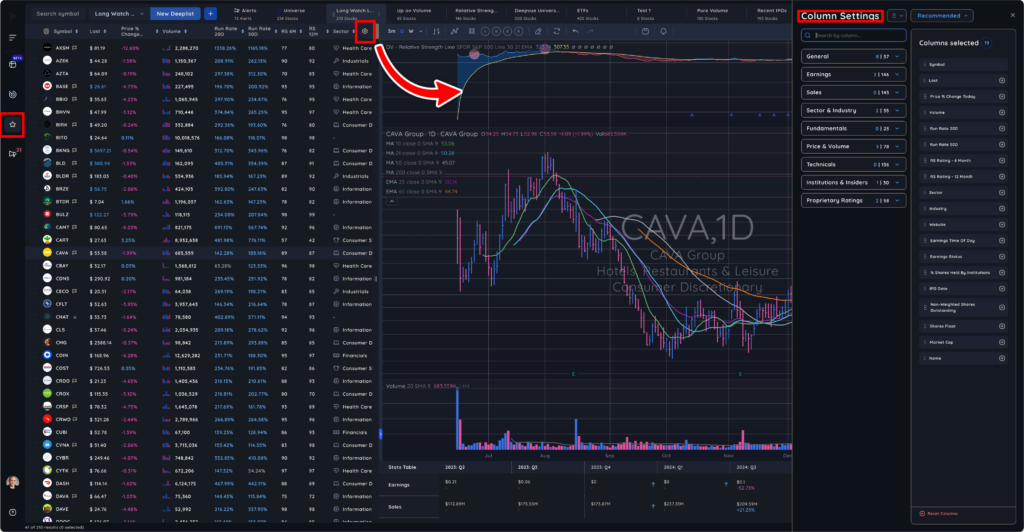
- In the Deeplists Panel, select the settings (gear) icon in the top right corner of you columns space and Column Setting will open on the right-hand side of your screen.
Selecting Columns
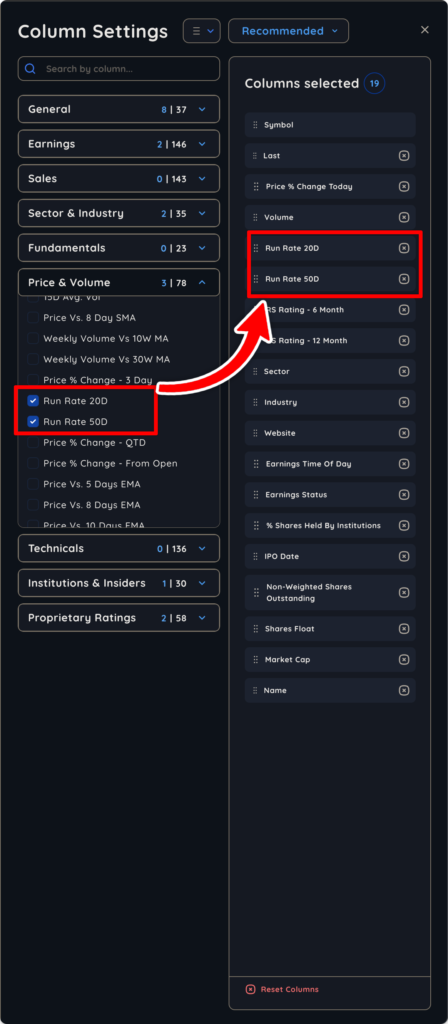
1. Either select one of the dropdown menus from the list of 9 major Categories that appear on the right, or type what you are looking for into the search box.
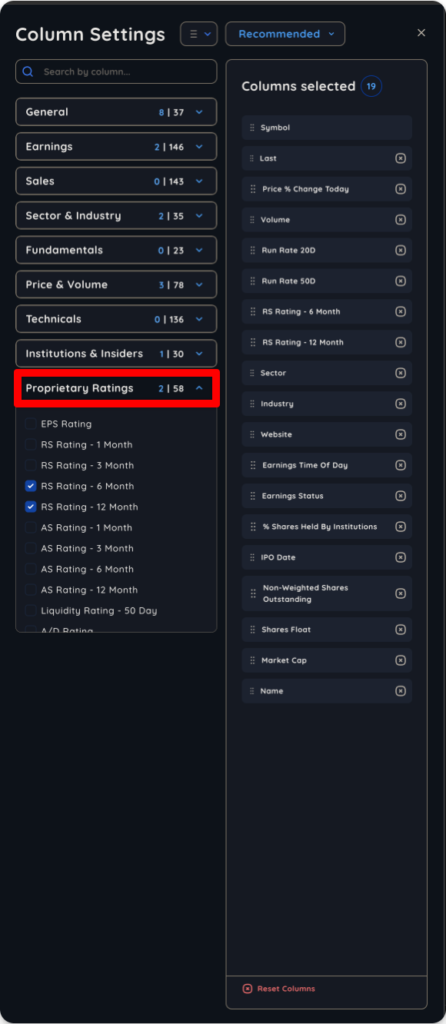
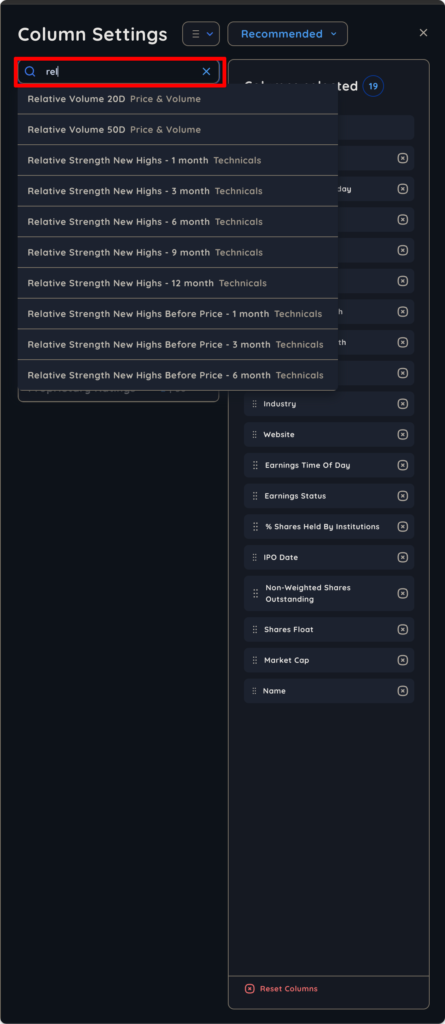
2. As you select each data point, it will appear immediately to the right, under Columns Selected.
Rearranging columns Using Drag and Drop
- Use your cursor, which changes to hand icon to simply drag and drop your columns in and order you wish.
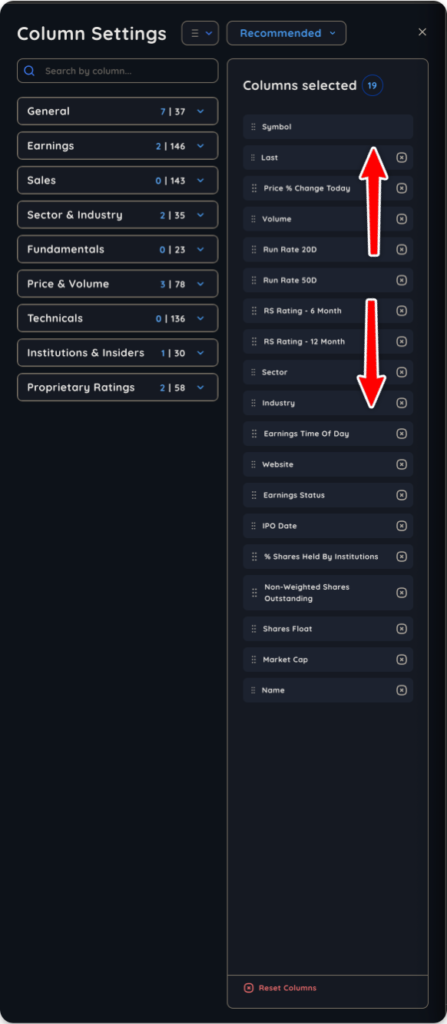
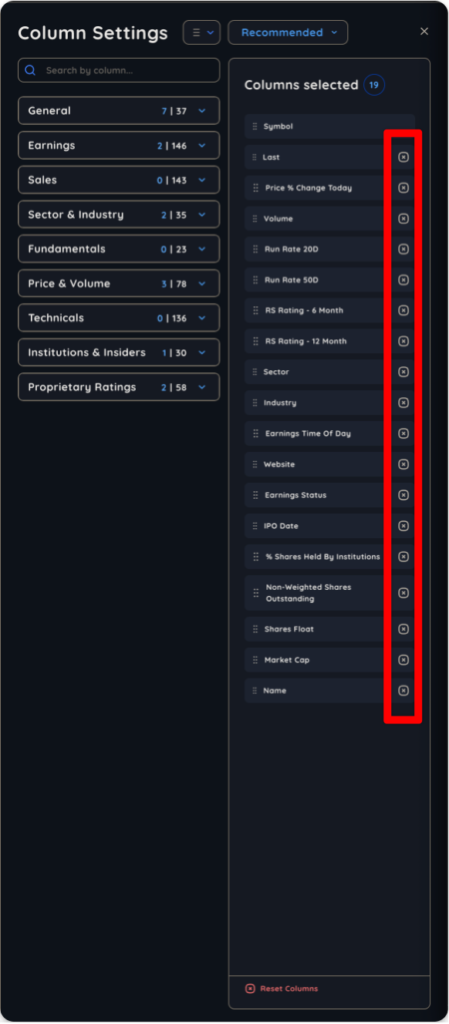
2. In order to delete a column, simply click the “x” to the right of the data point listed under the Columns Selected area.