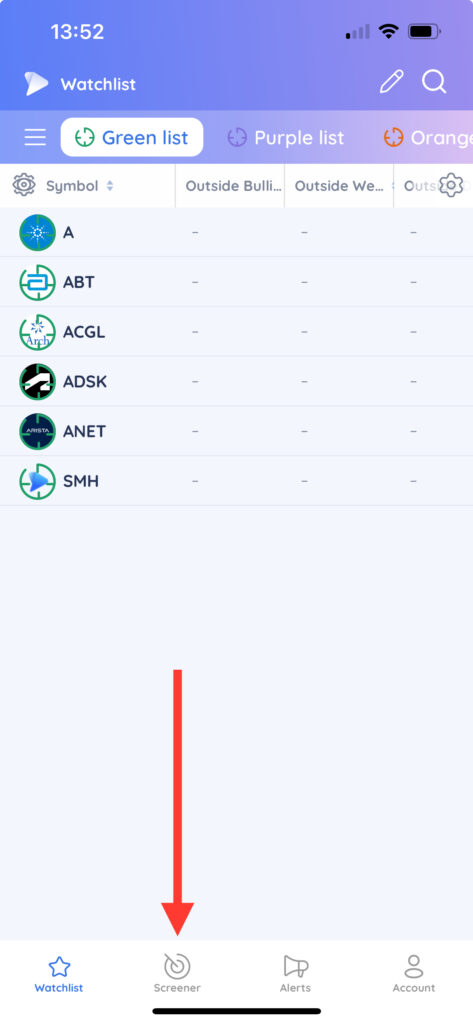
To access the mobile Screener, simply tap Screener in the bottom toolbar
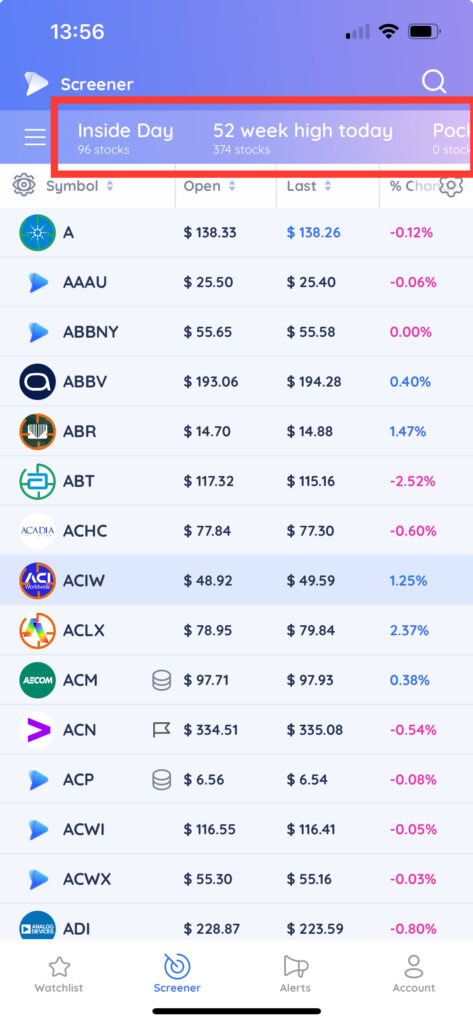
In the Screener, all your custom screens will appear as tabs at the top. Swipe left or right to scroll through the tabs to see all your screens
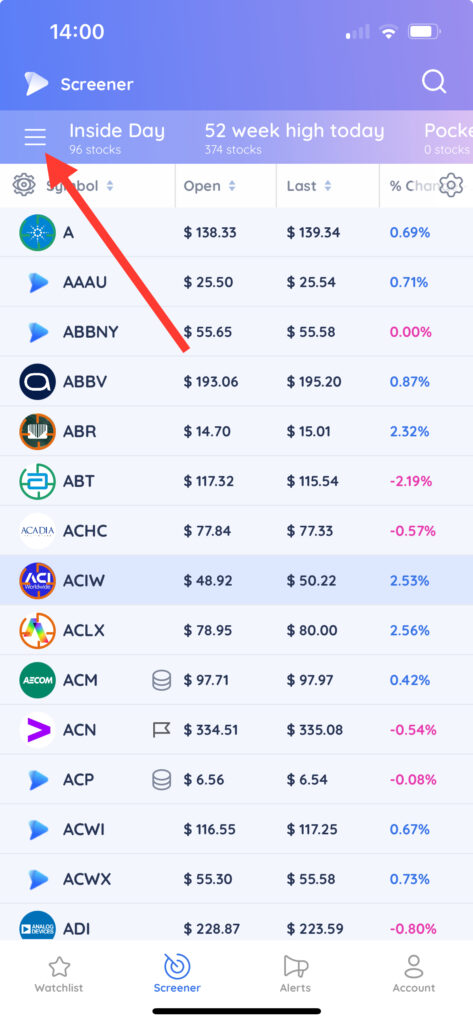
You can also access your screens, folders and preset screens by tapping the stacked lines in the top left corner.
From the menu, tap on a screen, folder or preset to load the screener. Swipe up or down to scroll through the list of custom screens.
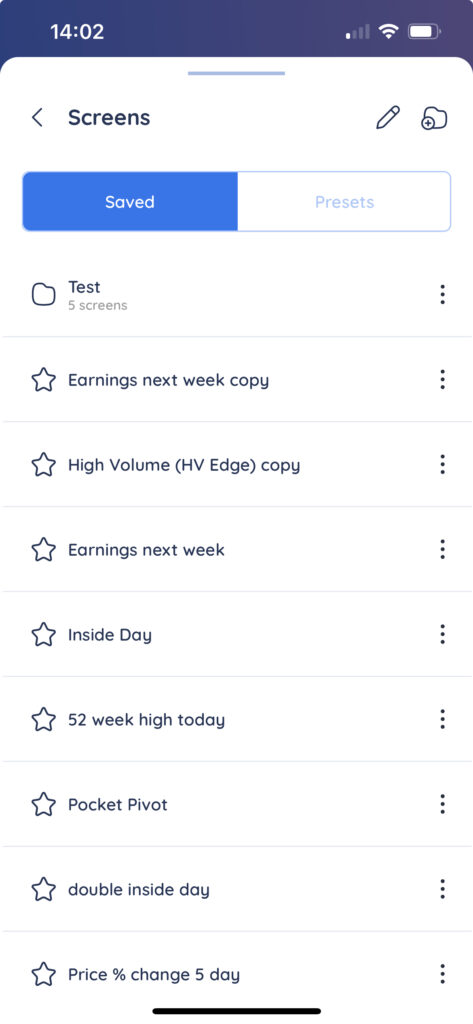
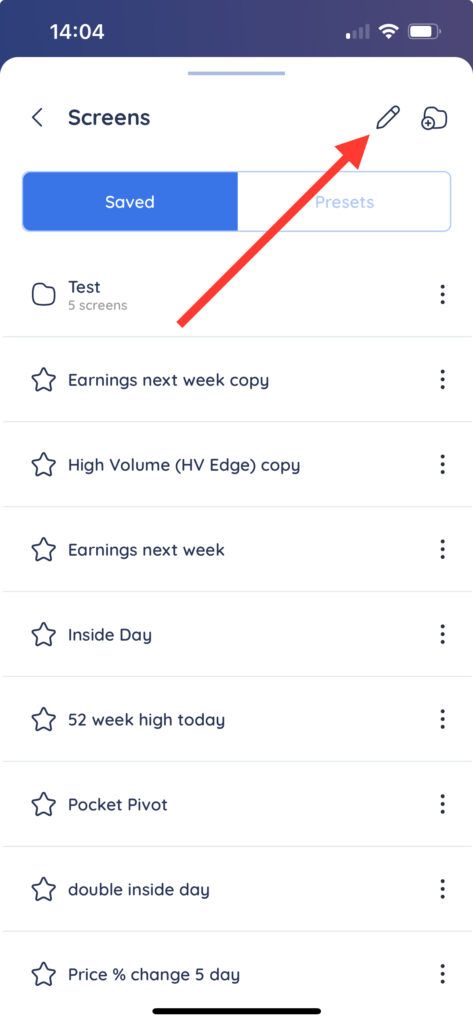
To organize the order of your screens or move screens into folders, tap the pencil icon to activate drag and drop. You can now press and hold on the 6 dot icon to drag and drop screens within the menu and into folders.
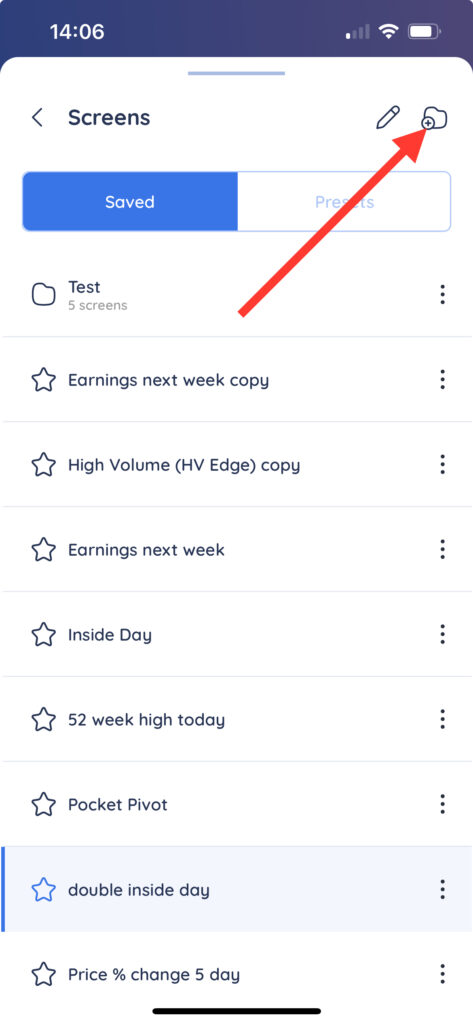
Tap the folder icon to create a new folder.
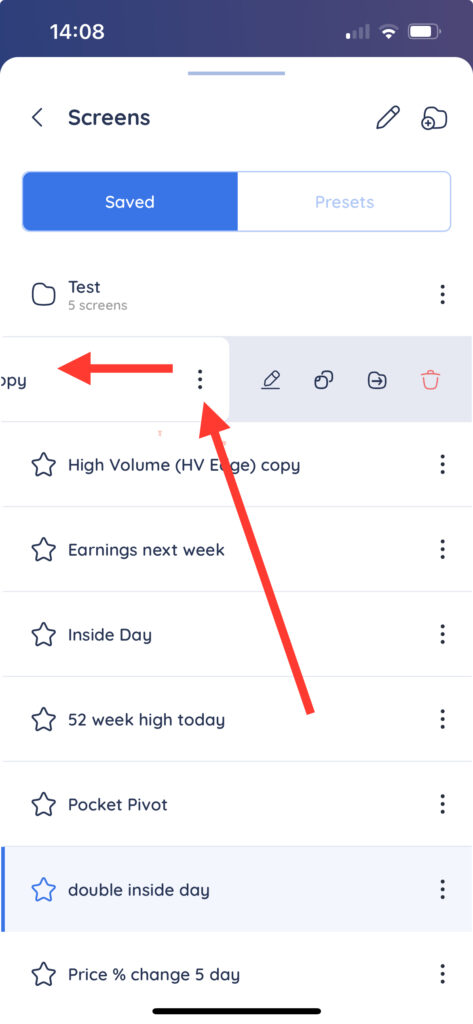
To edit the name of a screen, duplicate a screen, move it to a folder or delete it, swipe left on the screen name to access the options menu, then tap the icon of the action you want to perform.
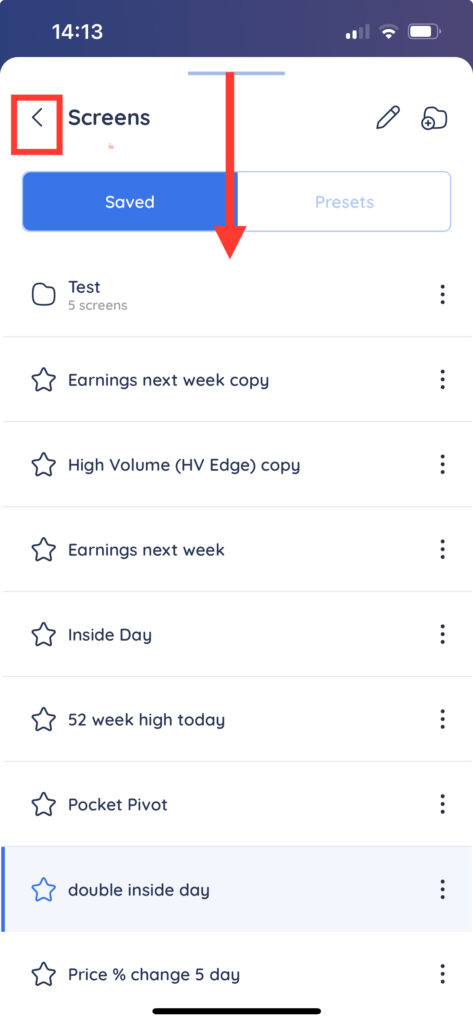
To exit the Screener menu, either select a screen, tap the back arrow or swipe down from the top of the menu.