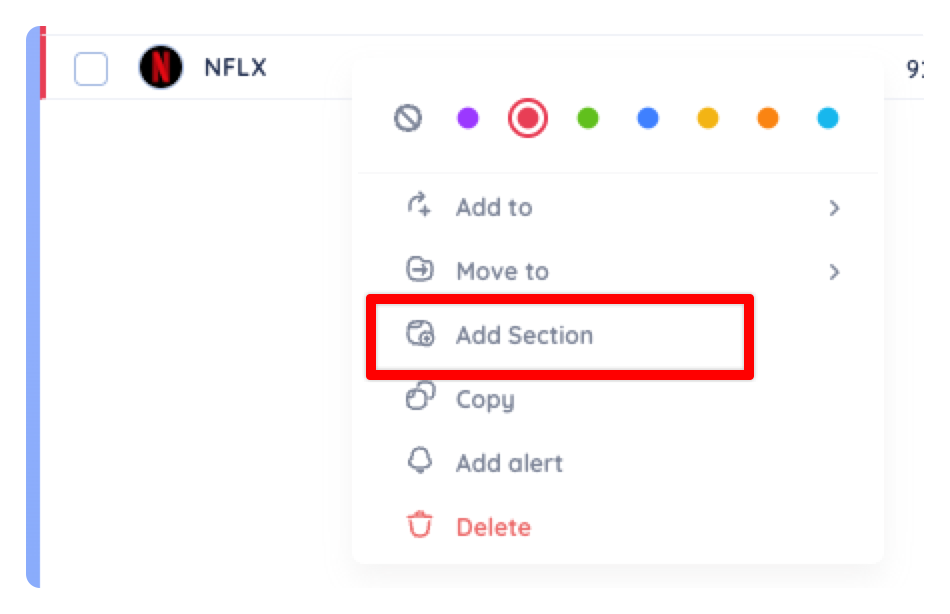
Click the logo immediately to the left of a stock’s ticker symbol to access the ‘Quick Access Menu’. This menu is available anywhere the company logo appears.
Note: Not all quick access menu functions are available everywhere in the application. For example, Delete will not appear when clicking on the quick access menu in a preset watchlist since you cannot delete symbols from presets.
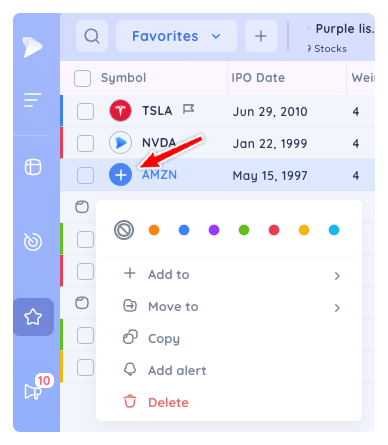
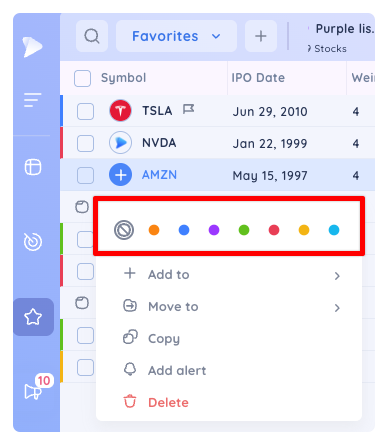
The top row of the Quick Access Menu allows you to add a stock to one of the coloured watchlists or remove if if it is already assigned to one of the coloured lists.
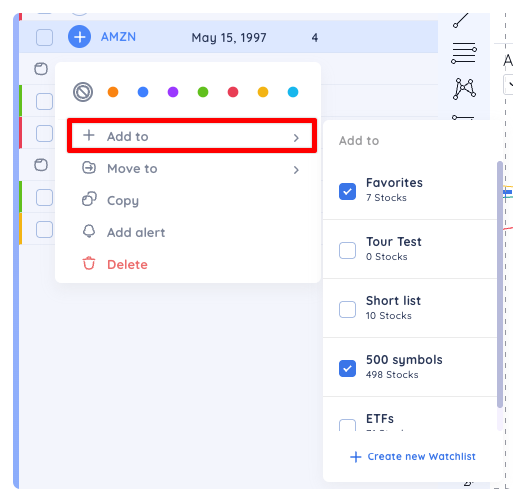
The ‘Add to’ dropdown menu allows you to add a stock to one or multiple watchlists. You can also create a new watchlist.
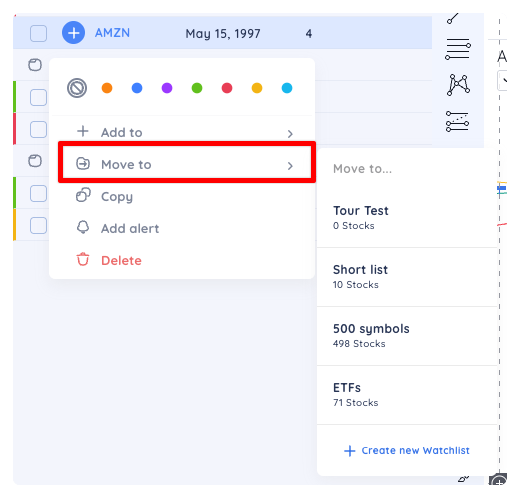
The ‘Move to’ dropdown menu allows you to move a stock from the list it is currently in to any other watchlist or to a newly created watchlist.
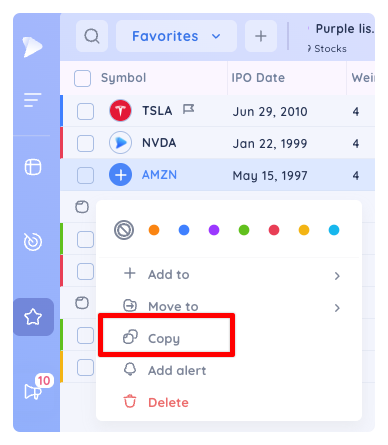
Clicking ‘Copy’ simply copies a stock’s ticker symbol to your clipboard, which can then be pasted elsewhere.
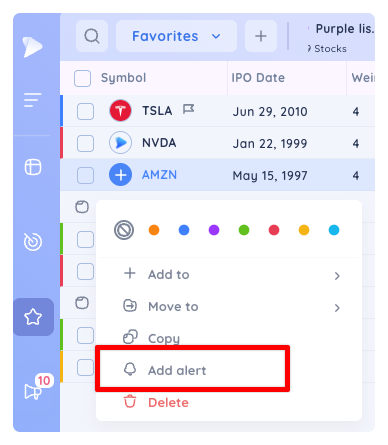
Click on ‘Add alert’ to create a price alert for the selected symbol.
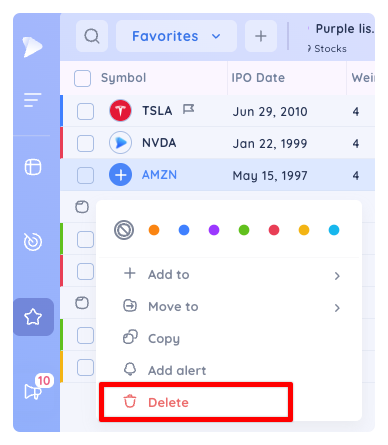
Click ‘Delete’ to remove a stock from the current list.
Click on Add Section to create a new section above the ticker that you clicked on