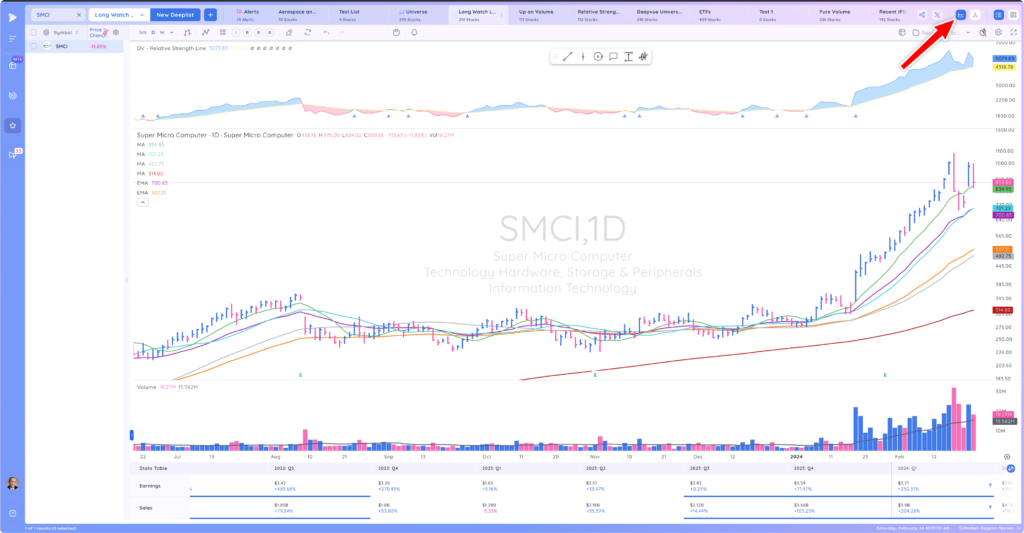
Accessing the Stats Table
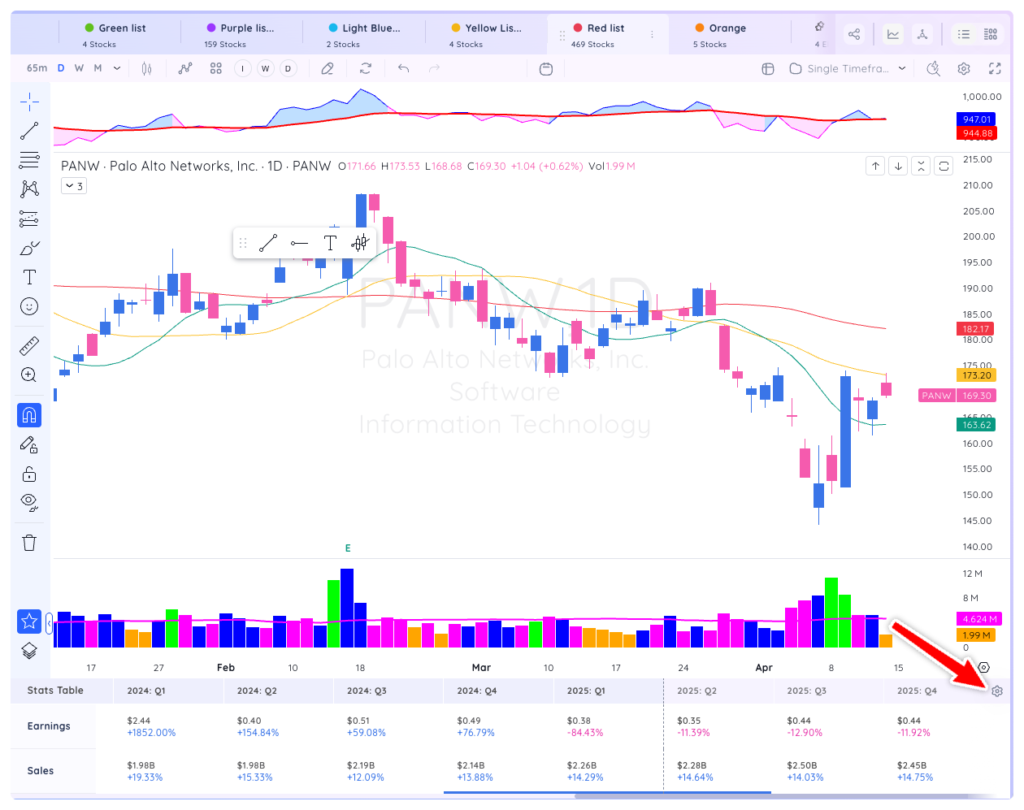
The Stats Table can be accessed by clicking on its associated icon at the top right corner of your screen. The Stats Table will then appear at the bottom of your screen, right below the chart.
Overview of the stats Table
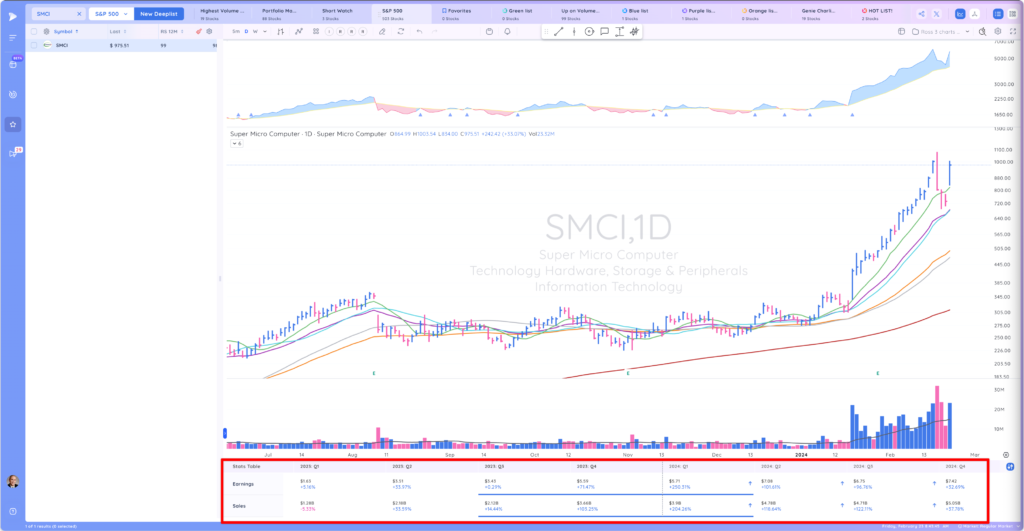
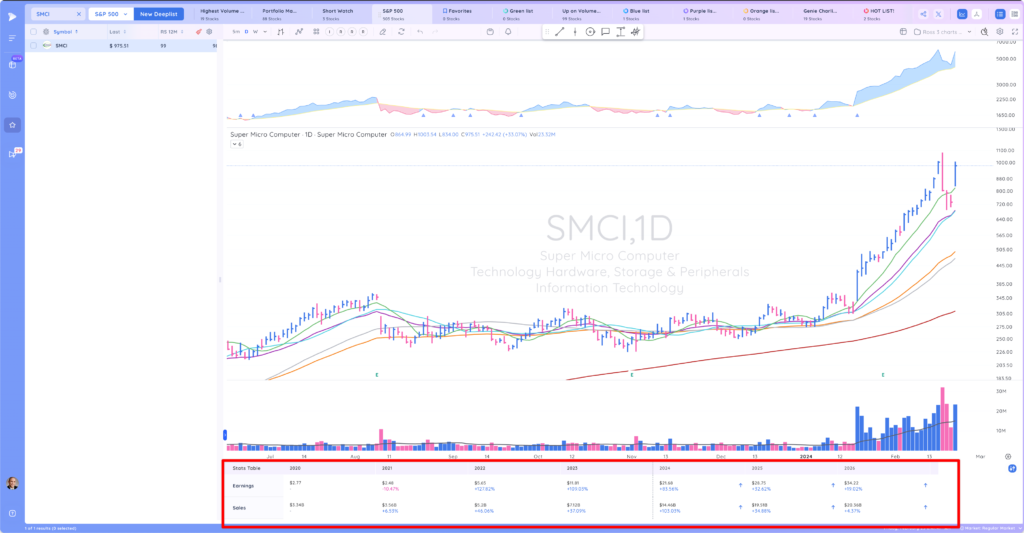
Deepvue’s Stats Table is a tool that provides investors with a swift snapshot of a company’s Earnings Per Share (EPS on a GAAP basis) and sales growth, on a quarterly and annual basis.
Quarterly EPS and Sales
Annual EPS and Sales
The Stats Table displays data in two primary rows: Earnings and Sales. When investors hover over any reported quarter, the reported EPS or sales, the estimate for that quarter, the percentage surprise, and the dollar surprise are revealed. This data is shared in GAAP accounting basis.
format, with the growth percentage signifying the rise in revenue or EPS compared to the same quarter in the previous year, thus considering seasonal business trends.

Acceleration Trends
The Stats Table includes acceleration indicators marked by thick blue bars beneath the EPS and Sales data. A blue bar represents three or more consecutive quarters of accelerating growth.

Stats Table Settings
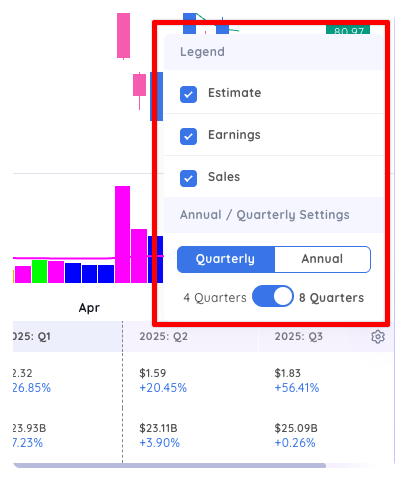
The Stats Table Settings are accessed by clicking the gear icon on the top right corner of the Stats Table beneath the chart. Notice that within the Stats Table, estimate data is displayed on the right side of the dashed division line, with the reported data on the left.
Toggling Earnings, Sales and Estimates
The setting for the stats Table are completely self explanatory and can be easily adjusted to your liking. You can toggle on/off Earnings, Sales, Estimates and toggle between Annual or Quarterly figures. Changes are reflected in real-time as you select your desired settings.