How to create a custom chart layout
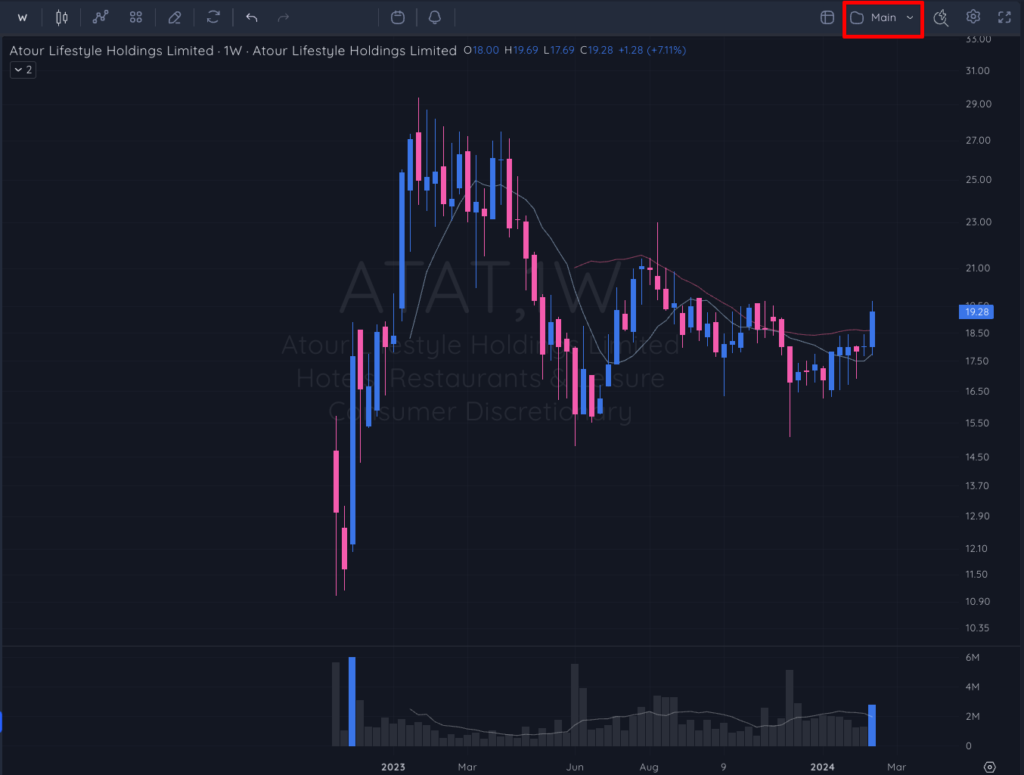
1. Click on the down arrow to the right of the folder icon on the top right of your chart.
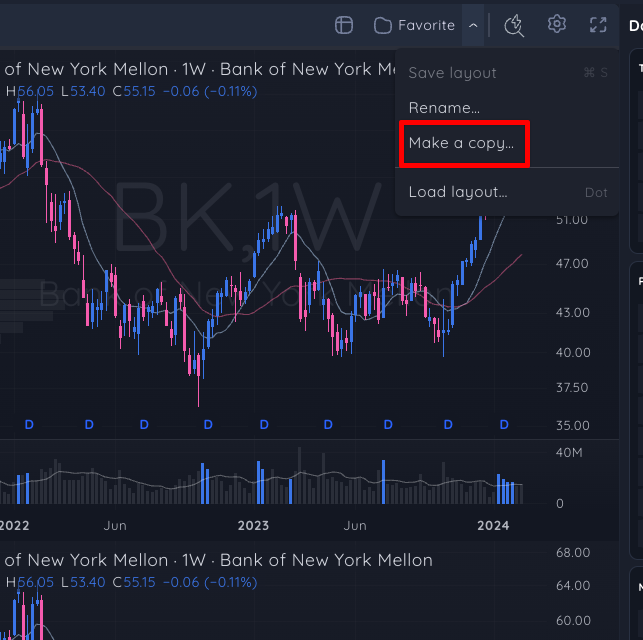
2. If this is your first layout, click Save Layout to create a layout for your changes to be autosaved to. If you already have one saved layout, click ‘Make a copy’ to create a new layout.
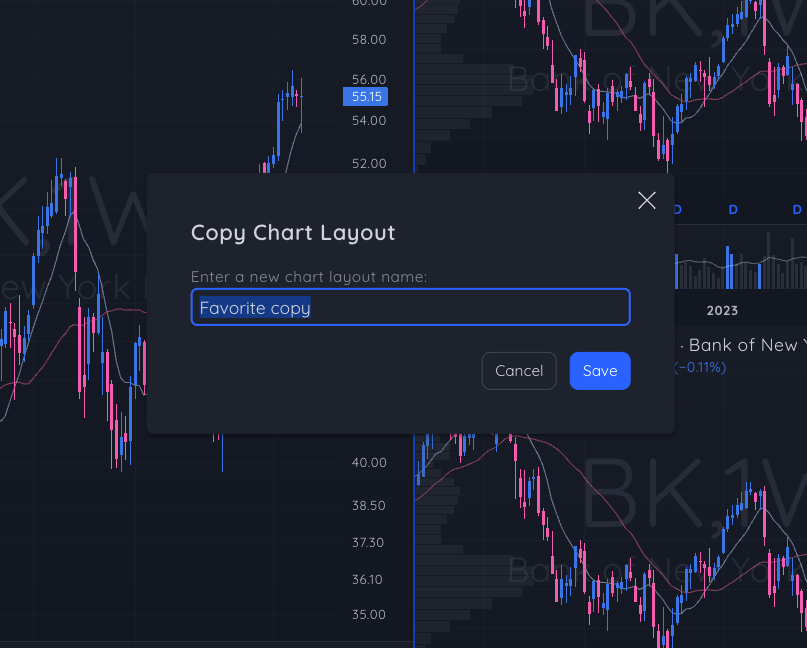
3. Enter the name of your new layout and click Save. Now your layout is created and all changes will be autosaved to it.
4. To customize your new layout click on the square icon on the top right of your chart.
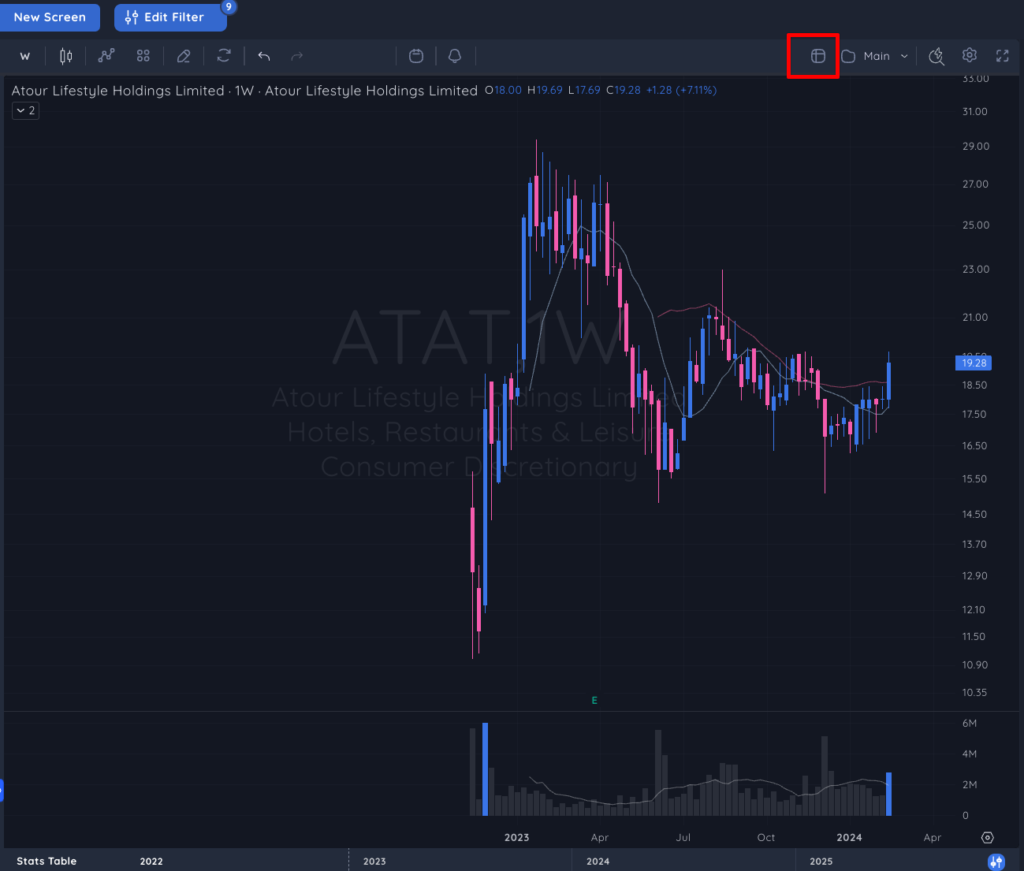
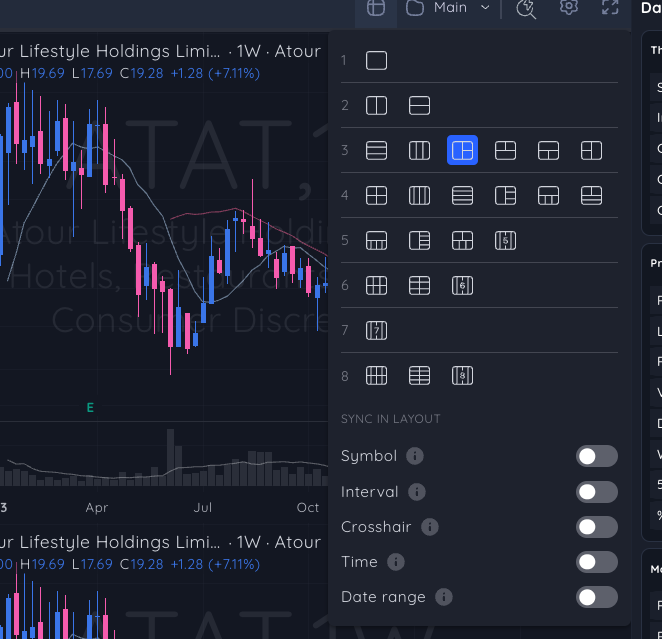
5. In the dropdown you can choose any of the available layout options. The one you choose will be autosaved to the current layout.
How to Load a custom chart layout
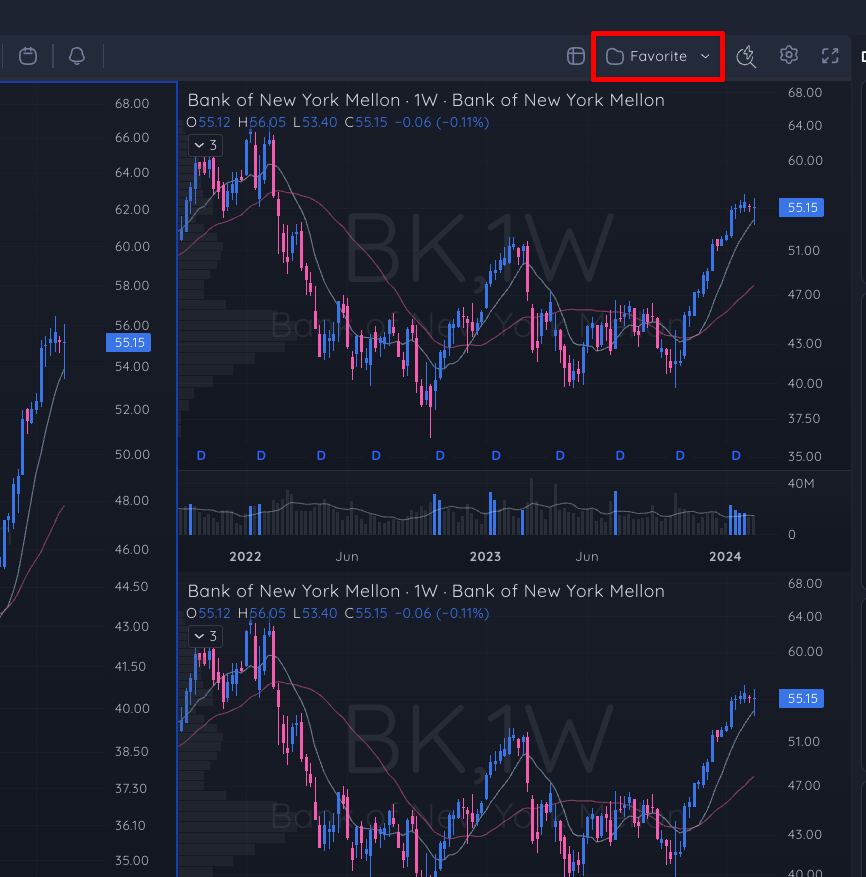
1. Next to the Layout Name click the drop down arrow to the right.
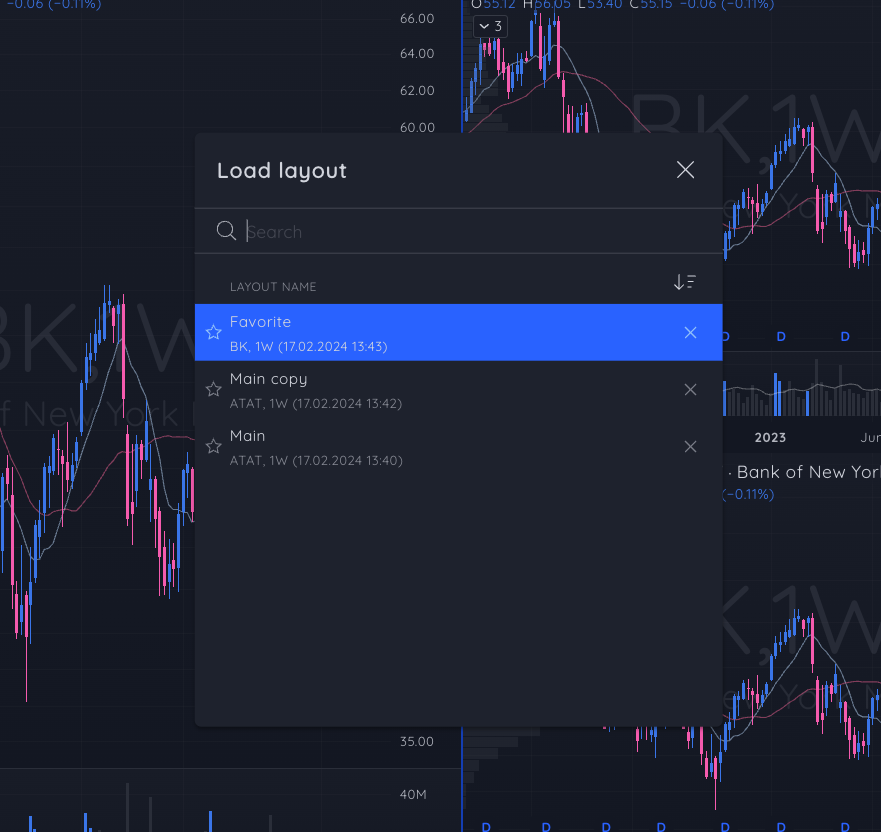
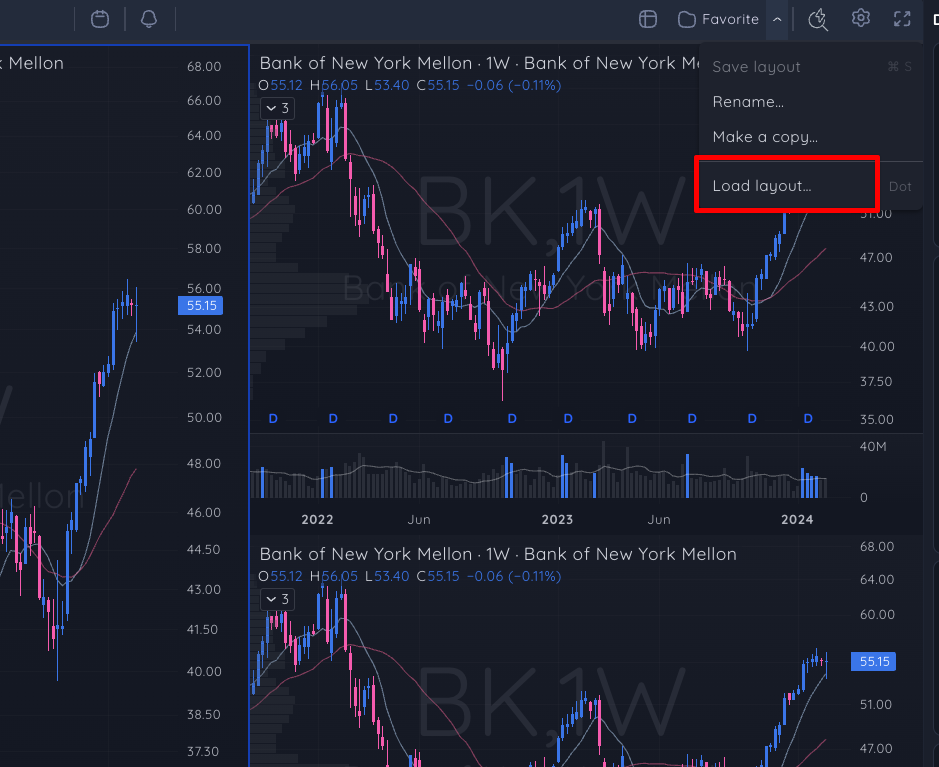
2. In the drop down click ‘Load Layout’.
3. Click on your desired layout to load it.