
How to Create a Multi-Timeframe Layout
1. Once you have created your custom layout, you can start customizing it. The chart box that is currently active will have a blue border around it.
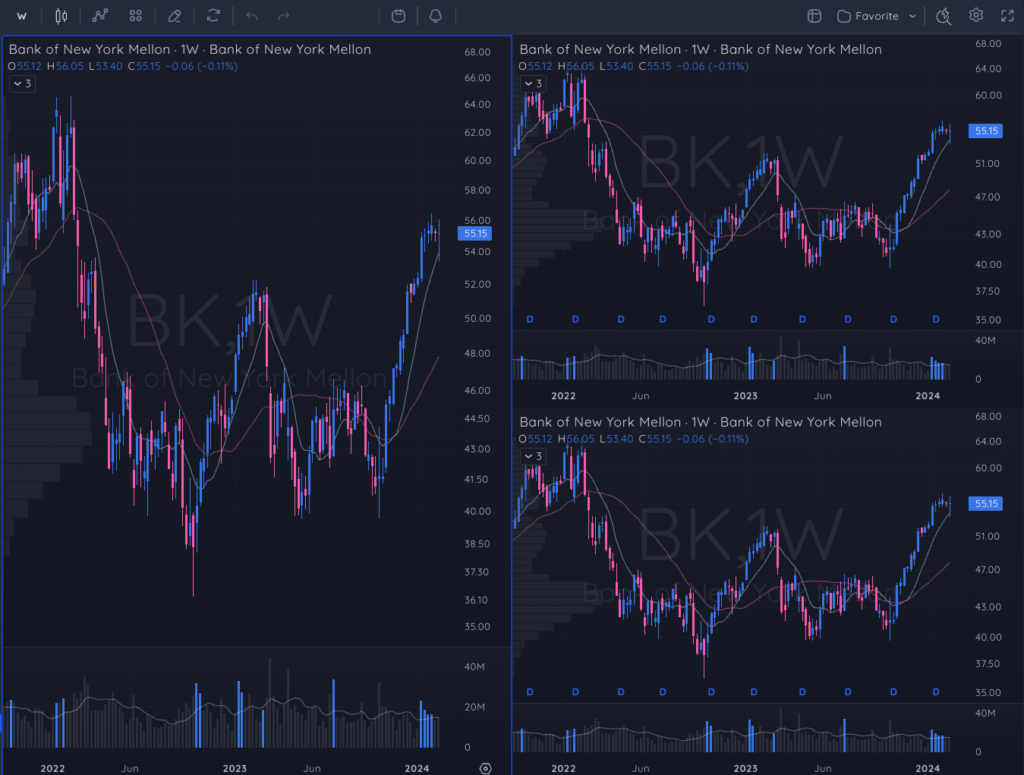
2. To change the selected chart timeframe (the one with the blue border) you can click on the timeframe in the chart menu.
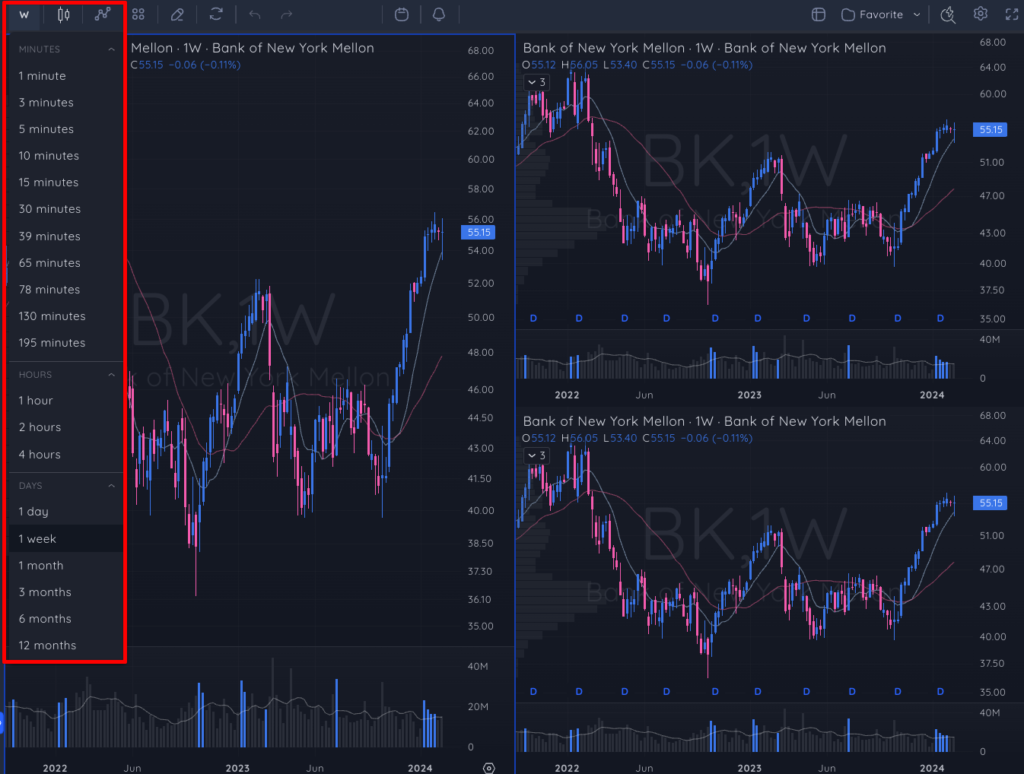
3. The selected chart will now be updated to the timeframe you choose and automatically saved to your custom layout. To change the timeframe on another chart, click on it to select it so it has a blue border, and do the same thing.