Mini charts let you view several charts all at once, so you can compare data without switching screens. Here’s what you can do with them:
- View multiple symbols on one screen – Track different stocks and ETFs from your watchlist all in one place.
- Use various time frames – View intraday, daily, and weekly charts to get the view you need.
- Mix symbols and time frames – Compare how different assets perform across multiple time periods.
- Add moving averages – Spot trends faster by layering moving averages on each mini chart.
- Change time frames easily – Adjust your time frames with just a click to see short- or long-term trends.
To access Mini Charts, click the icon in the top right of the screen.
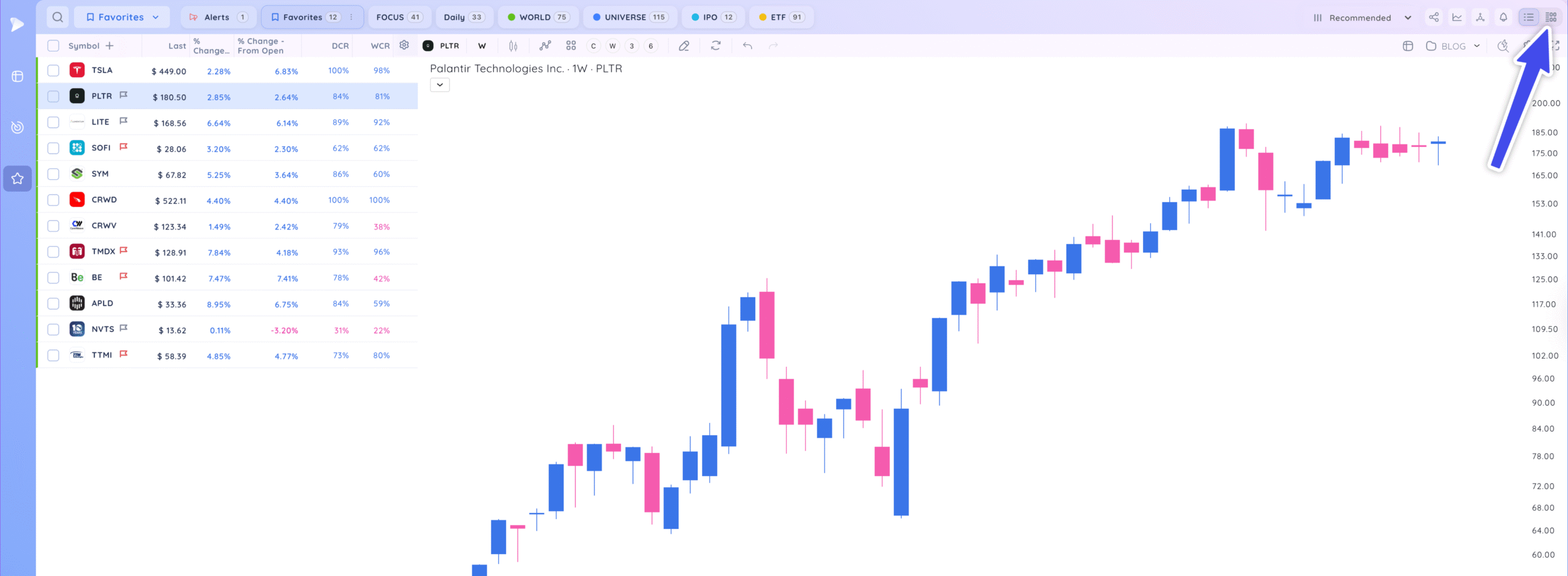

Charts will now be in mini-chart view. You can view any screener or watchlist in this view to quickly view multiple charts at once.
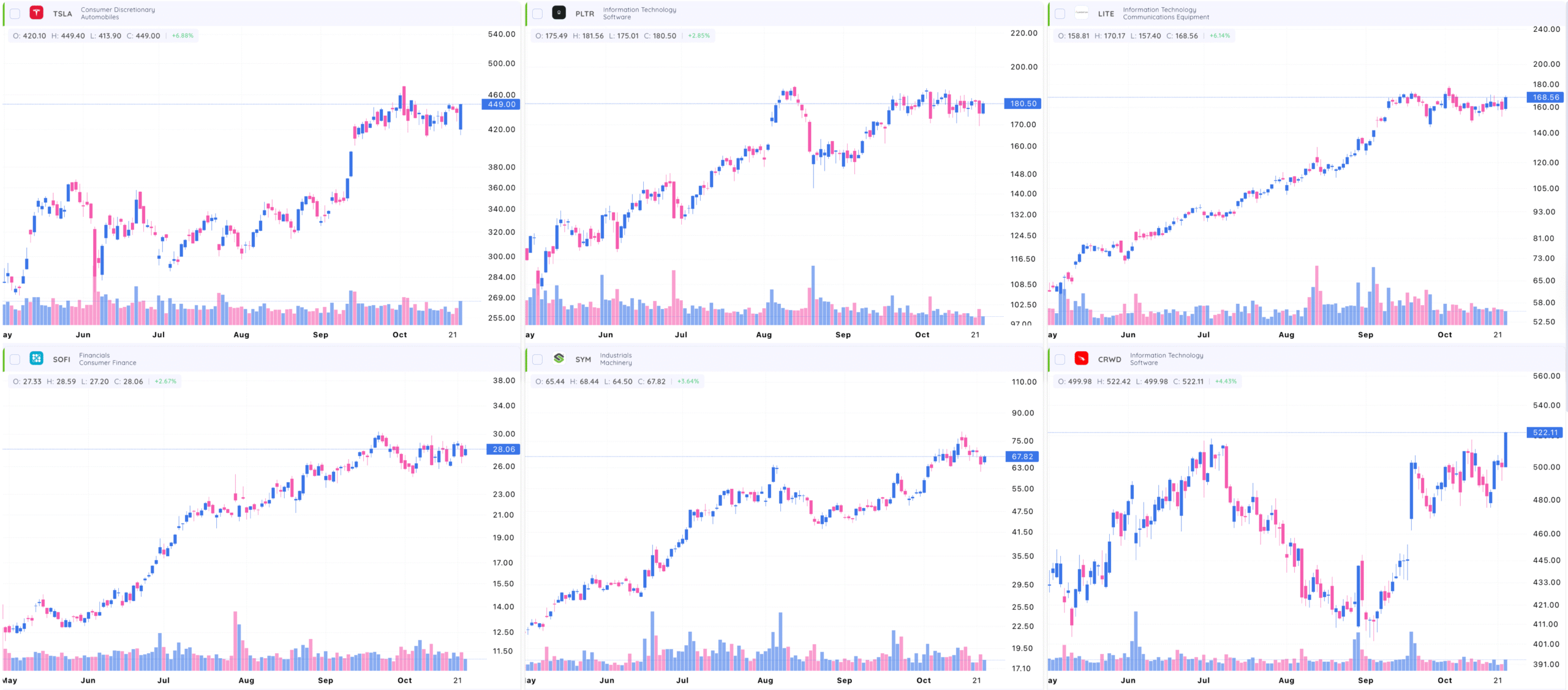
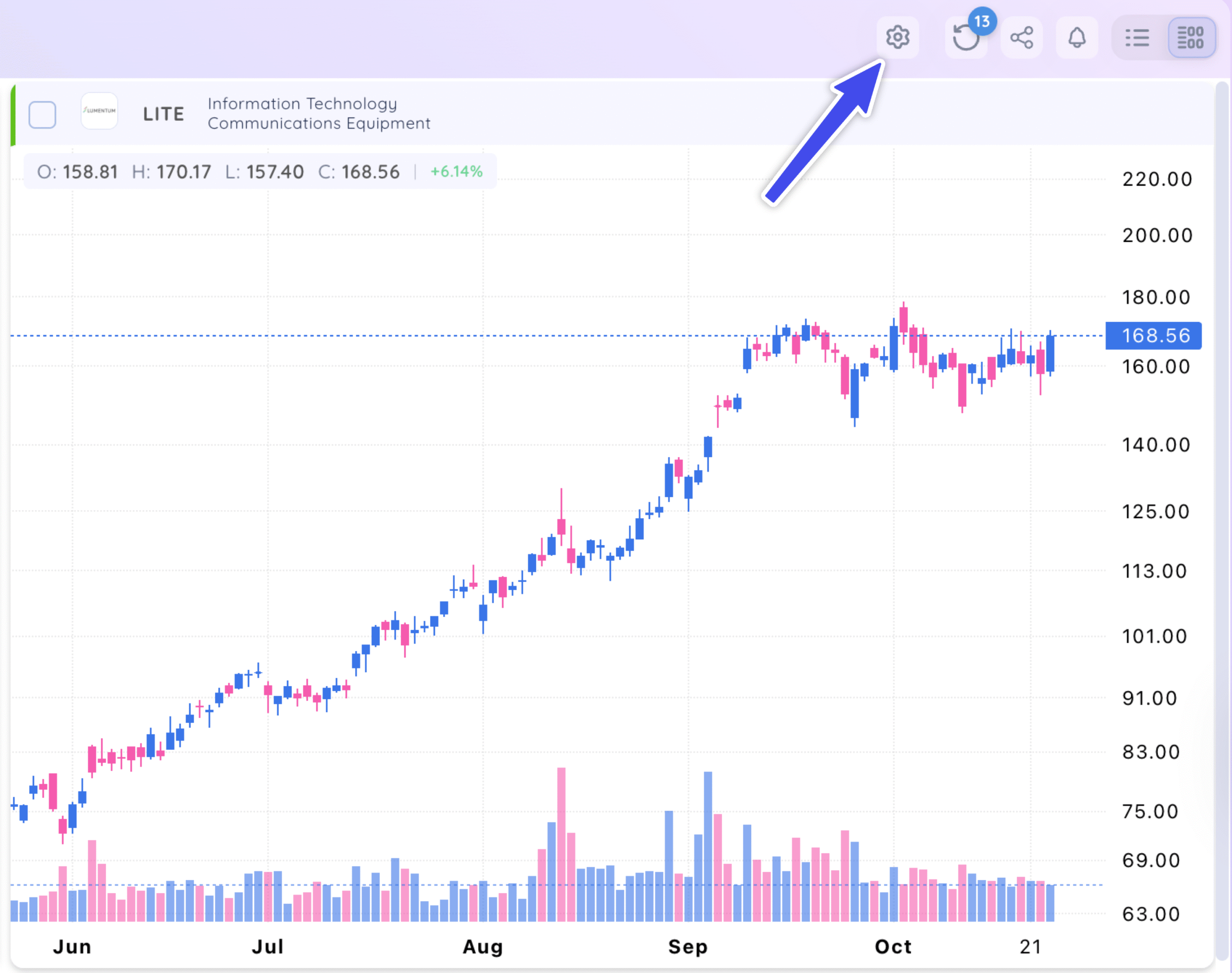
Mini Chart Settings
Click on the settings icon on the top navigation bar.
Click the drop-down arrows to change to your desired settings:
- Change what you sort by: Pick how you want to sort your data — by symbol, price action, fundamentals, or any other metrics already built into the system.
- Choose your timeframe: Select the timeframe that fits your trading style – intraday, daily, weekly, or monthly.
- Pick your chart type: Choose how you want your charts to look. You can go with candlestick, bar, or line charts depending on what you’re most comfortable with.
- Adjust the grid layout: Decide how many charts you want to see side by side. Set your layout to 2, 3, or 4 charts wide to match your workflow.
- Select your color scheme: Pick the colors that are easiest on your eyes. Choose between a blue/pink or green/red theme for your charts.
- Set the scale type: Choose how your price scale is displayed. Go with arithmetic for a standard view, or logarithmic if you’re comparing large price changes over time.
- Extended Trading Hours: Select this to see pre- and post-market hours on your intraday charts.
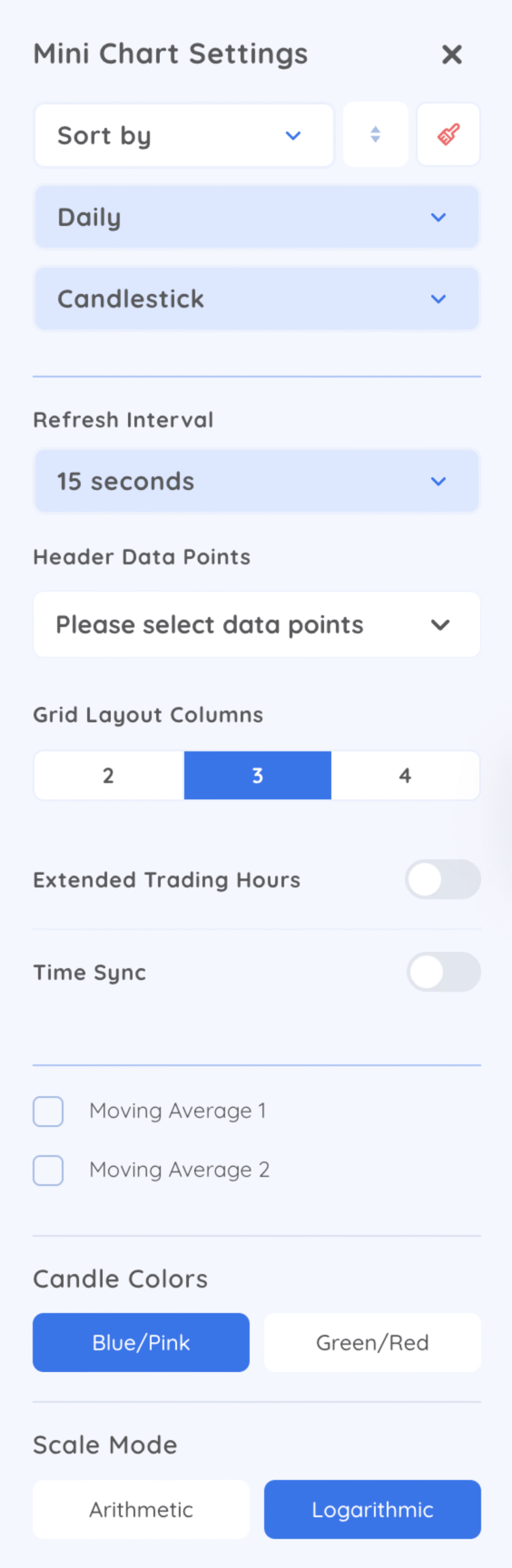
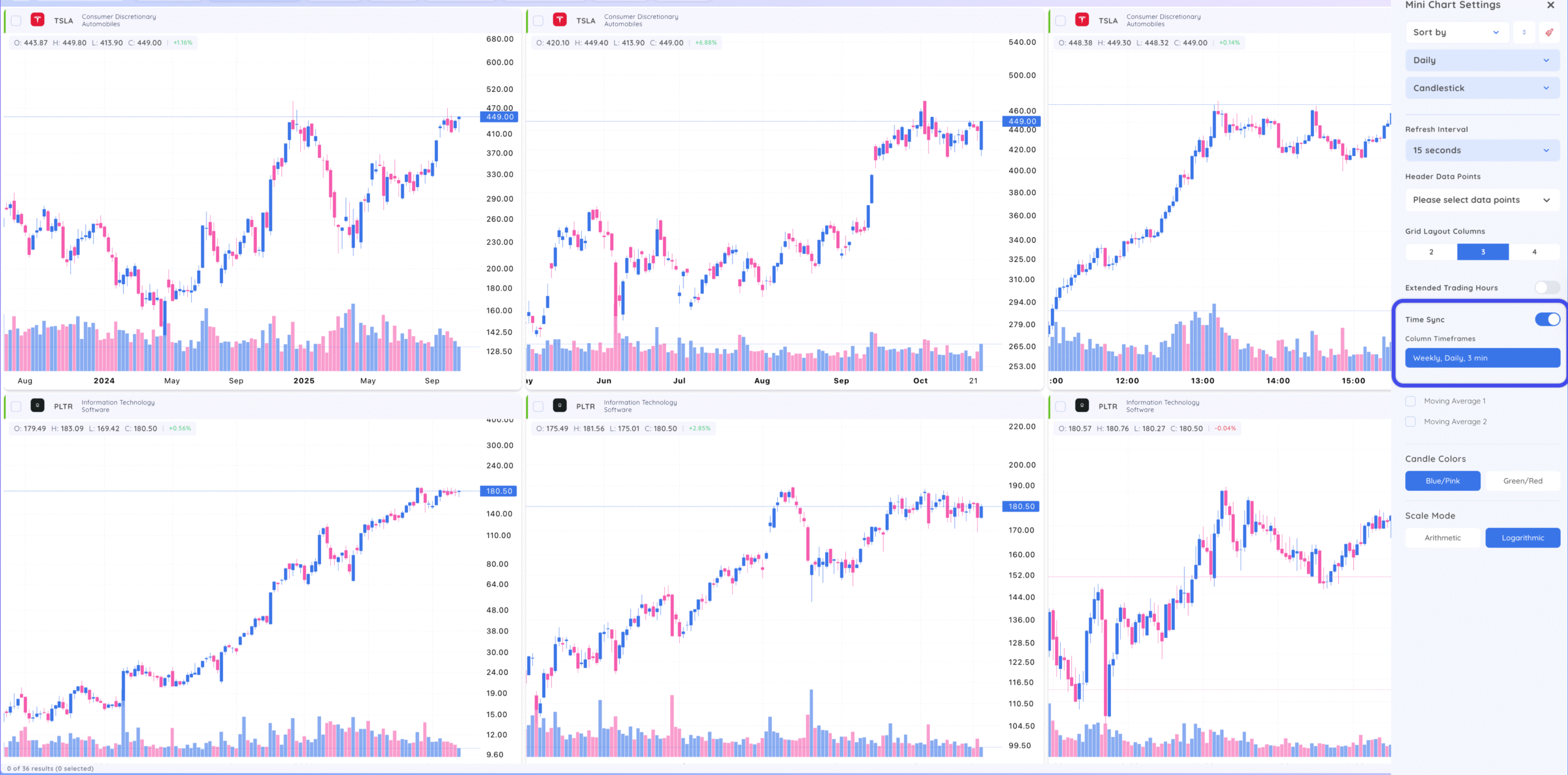
- Time Sync: Select this setting to see multiple timeframes at the same time. Change the various columns to your desired timeframes – You will now see one symbol per column in multiple timeframes.
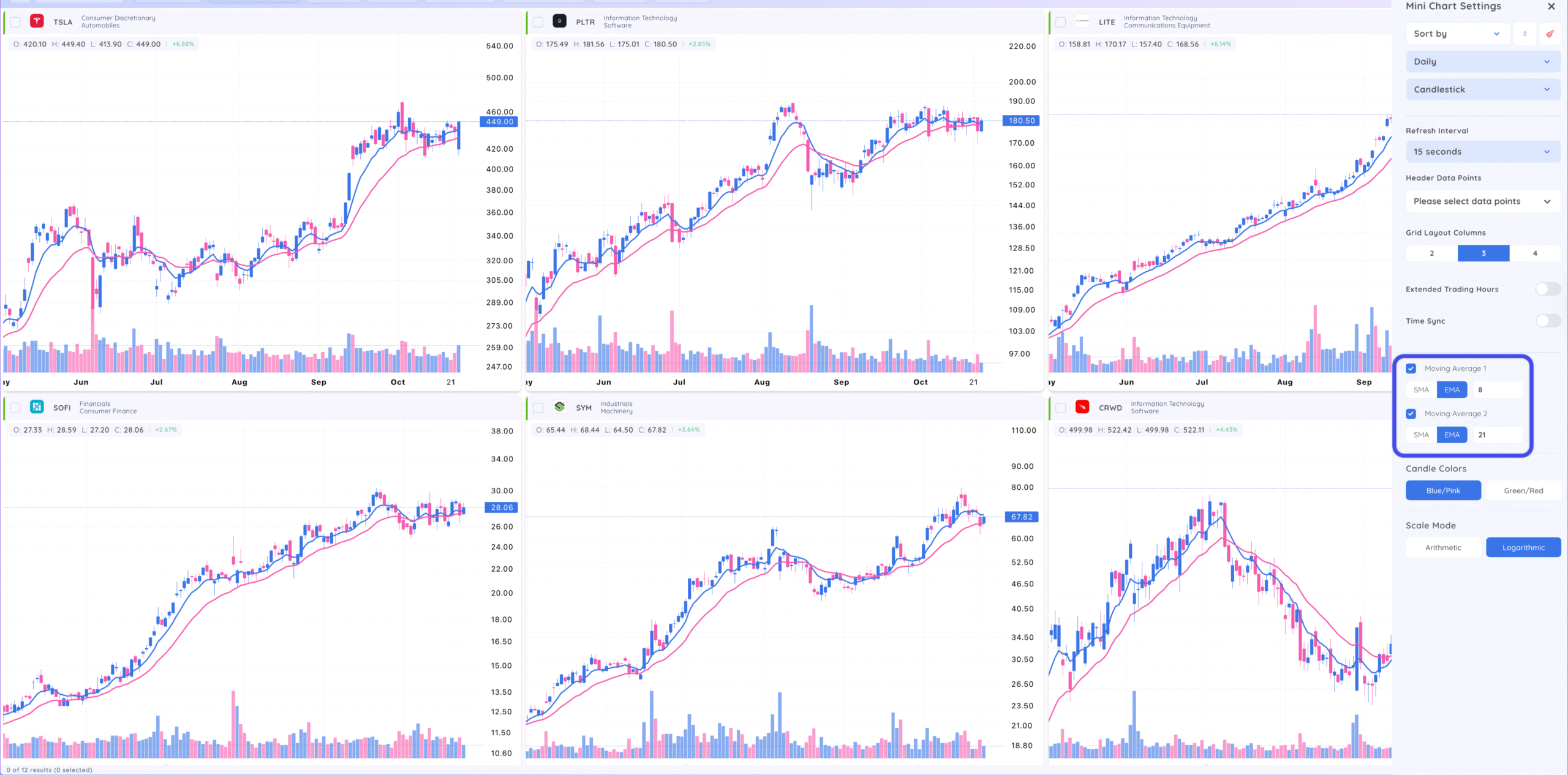
- Moving Averages: Toggle up to two moving averages. Select the value and simple or exponential.
To return to single chart view, click the single chart icon.