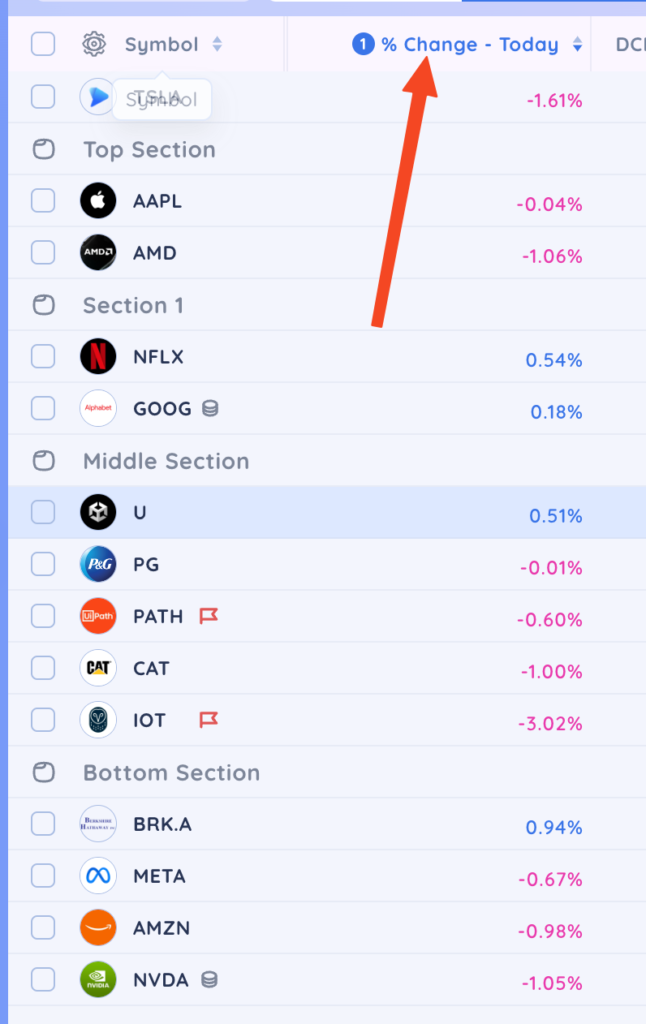
You can create sections in all custom watchlists, Positions, Favourites and the coloured target lists in the Watchlist module. Sections cannot be created in the Alerts, Universe list, Combo lists or screen results.
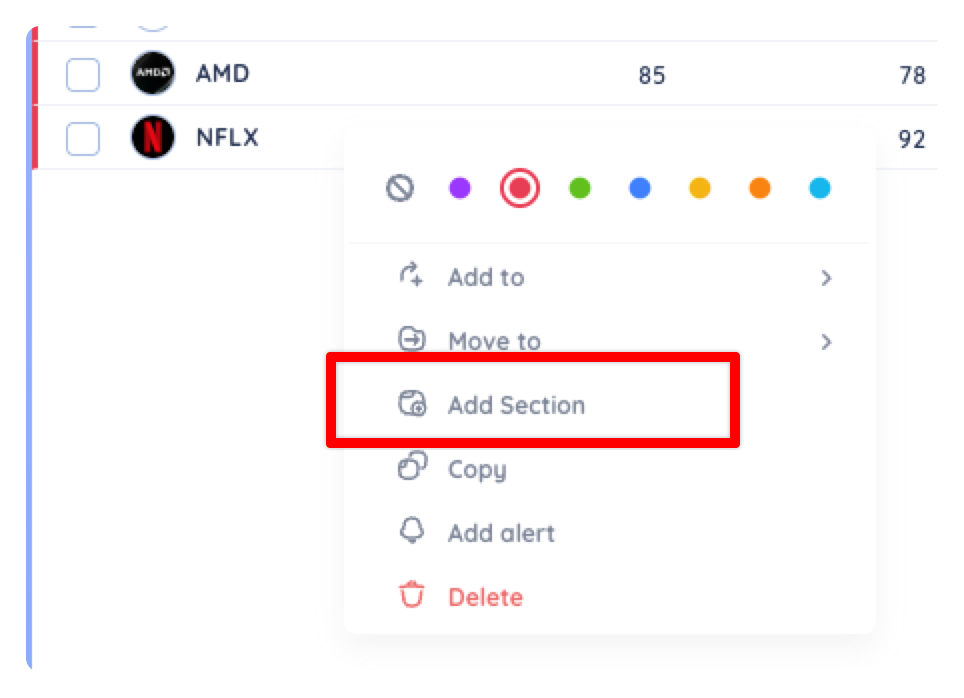
To create a section, click on the company logo to bring up the quick access menu. Alternatively you can right-click on the row. Then click on Add Section. This will create a section above the symbol where you clicked.
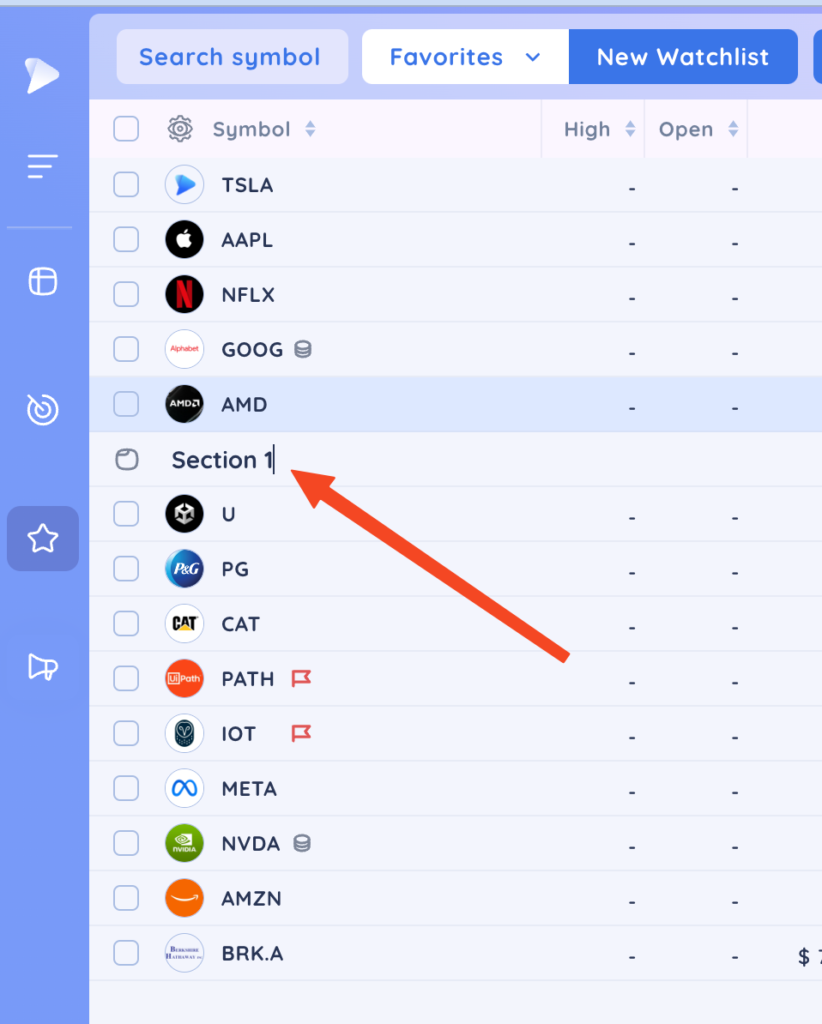
To rename a section, click the section title, type a new name, the press Enter. To delete a section, click the trashcan icon next to the section name.
You can drag and drop sections within the list by click and hold on the drag and drop icons to the left of the section name. You can also drag and drop individual symbols between sections.
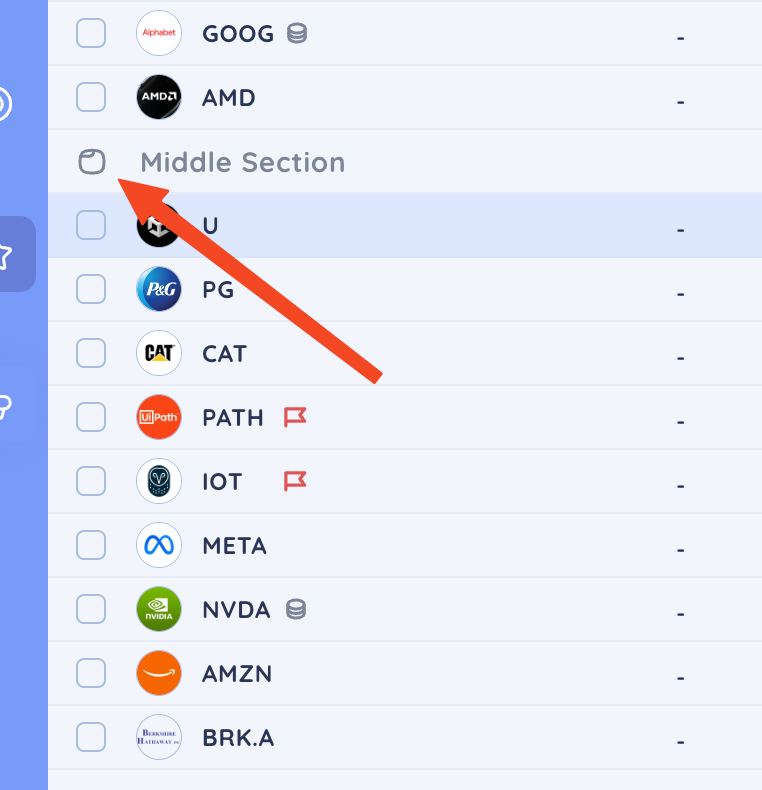
You can create as many sections as you want to effortlessly organize all your symbols within your watchlists.
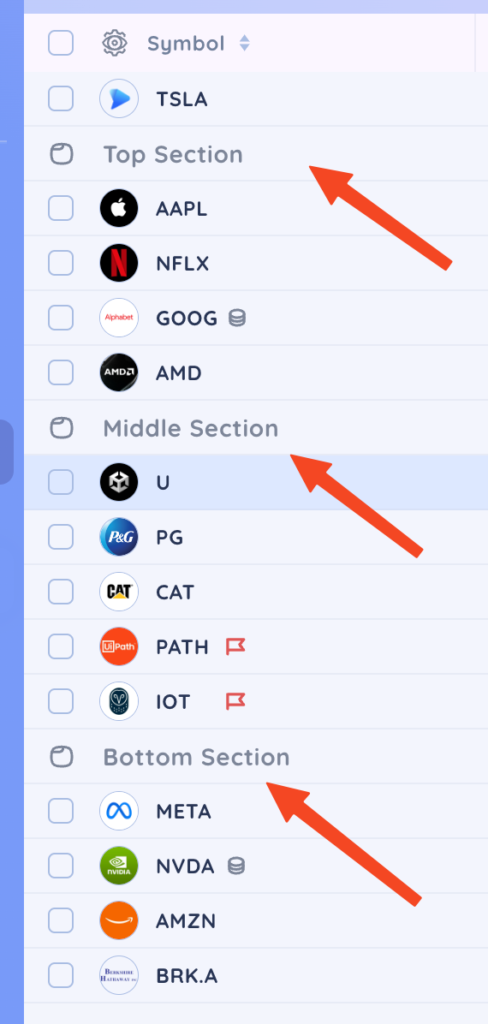
You can still sort by columns with sections created and your symbols will be sorted within each section according to the column you have sorted by. If you drag and drop a section, or an individual row while sorting is applied, the sorting will automatically clear and revert to your manual arrangement.