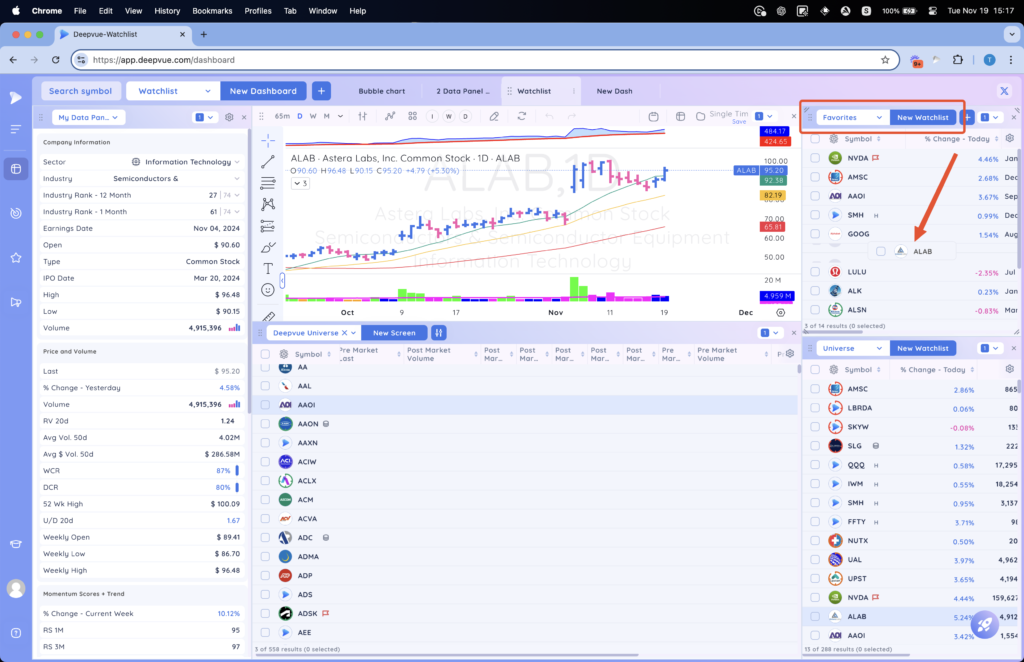
You can drag and drop symbols within any custom watchlist, Favourites and any of the 5 coloured lists. Click and hold on the row, then drag the symbol to any other row in the list. In this example we are dragging MSFT.
Note: Drag and drop is not enabled for Universe list
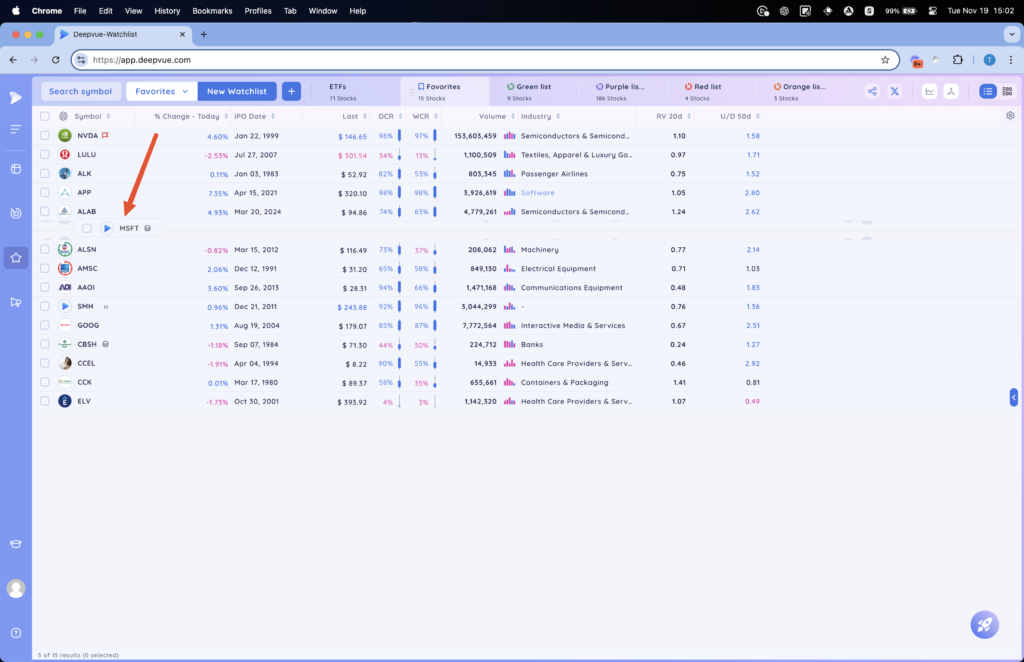
Then drop the symbol where you want to place it. In this example we moved MSFT down the list.
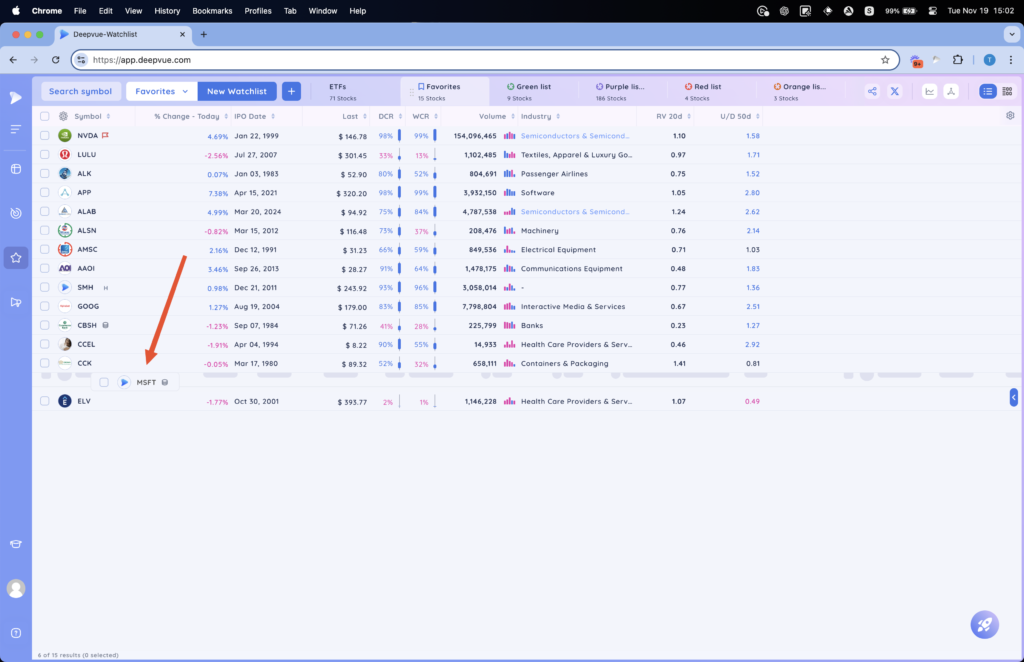
Note: If you have column sorting applied, drag and drop is disabled. Clear all column sorting to enable drag and drop.
You can drag multiple symbols at once by using the checkboxes, then click and drag on any of the selected rows.
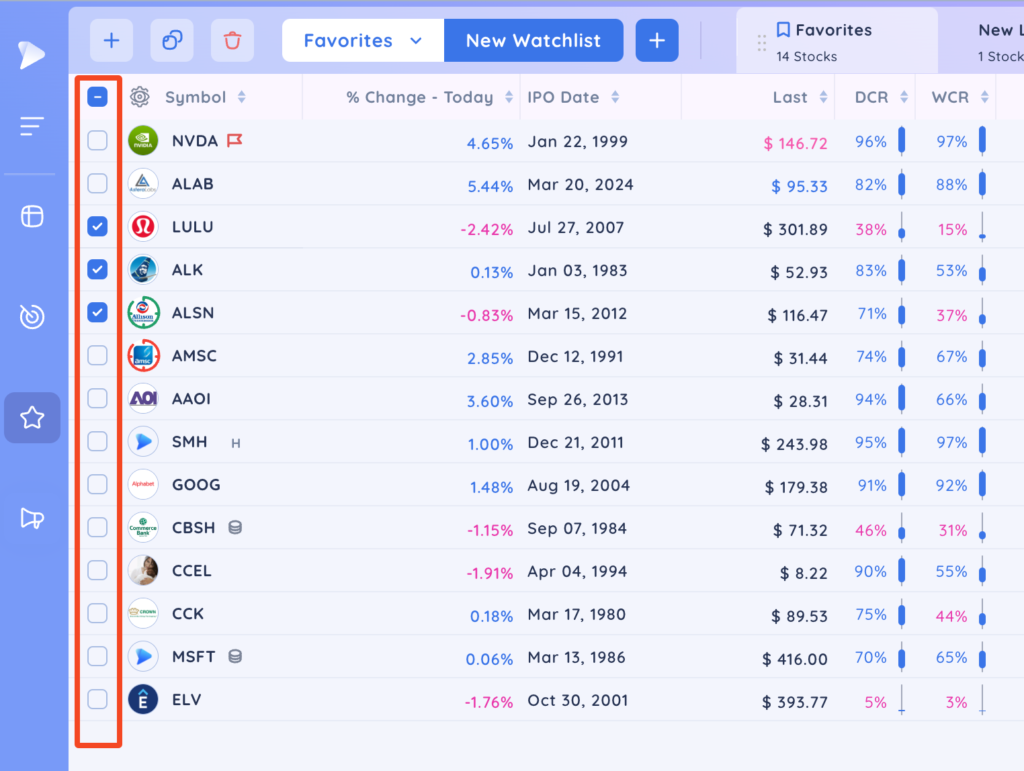
The selected symbols will stack and can now be dropped anywhere in your list.
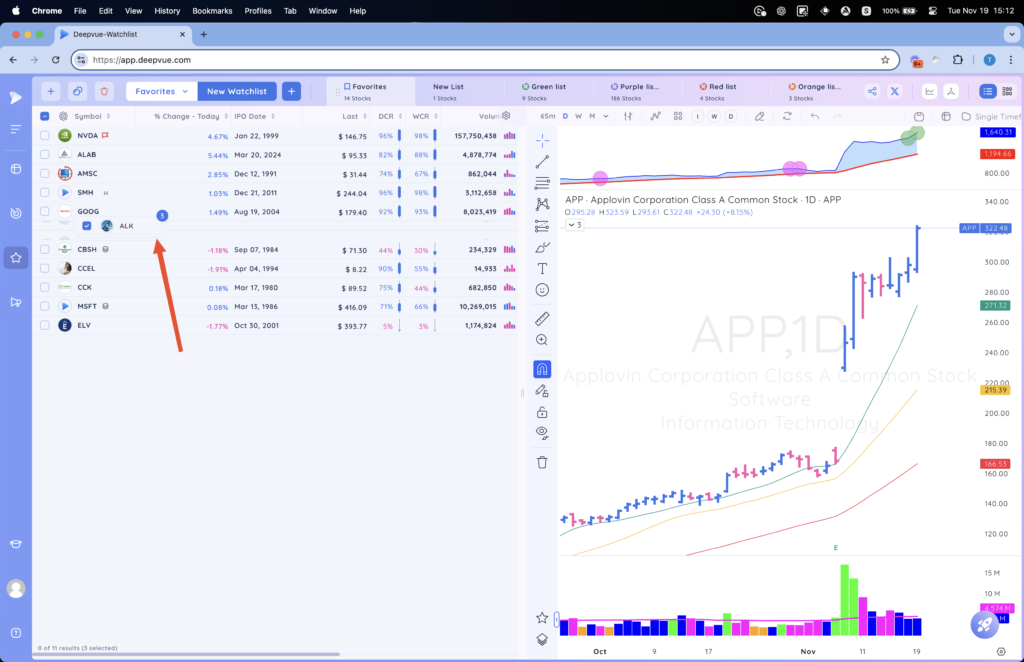
You can also drag and drop symbols between lists to move them from one list to another. Click and hold on the row of the symbol you want to move. Then drag it to the tab of the list where you want to move the symbol to. In this example we are moving APP from Favourites into New List.
Note: Drag and drop between lists moves the symbol from one list to another list.
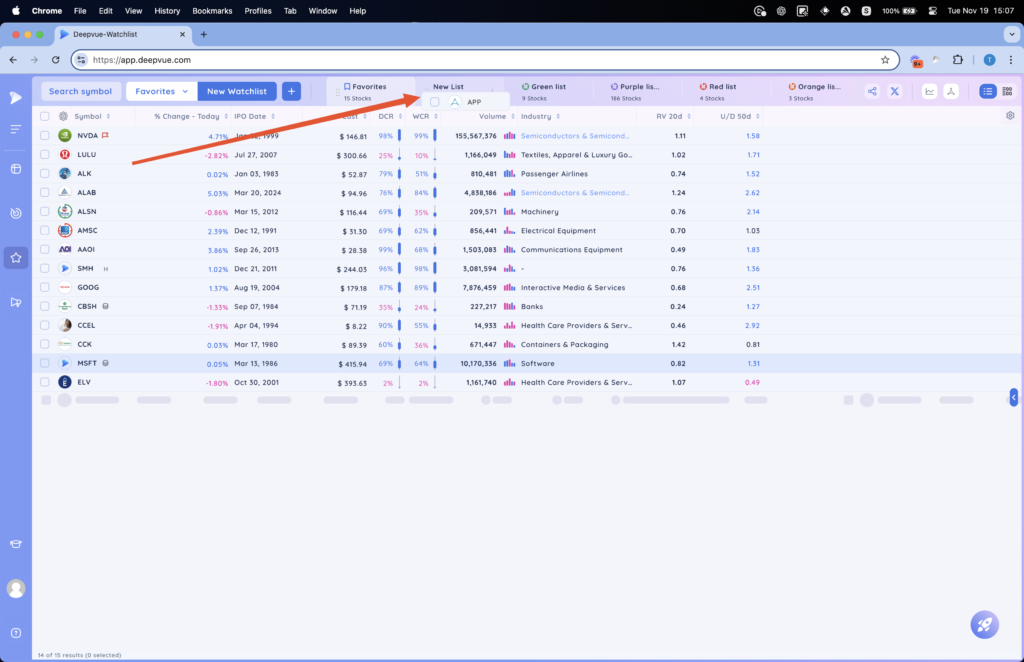
After you drop the symbol onto the tab of the list where you want to move the symbol to a notification will appear.
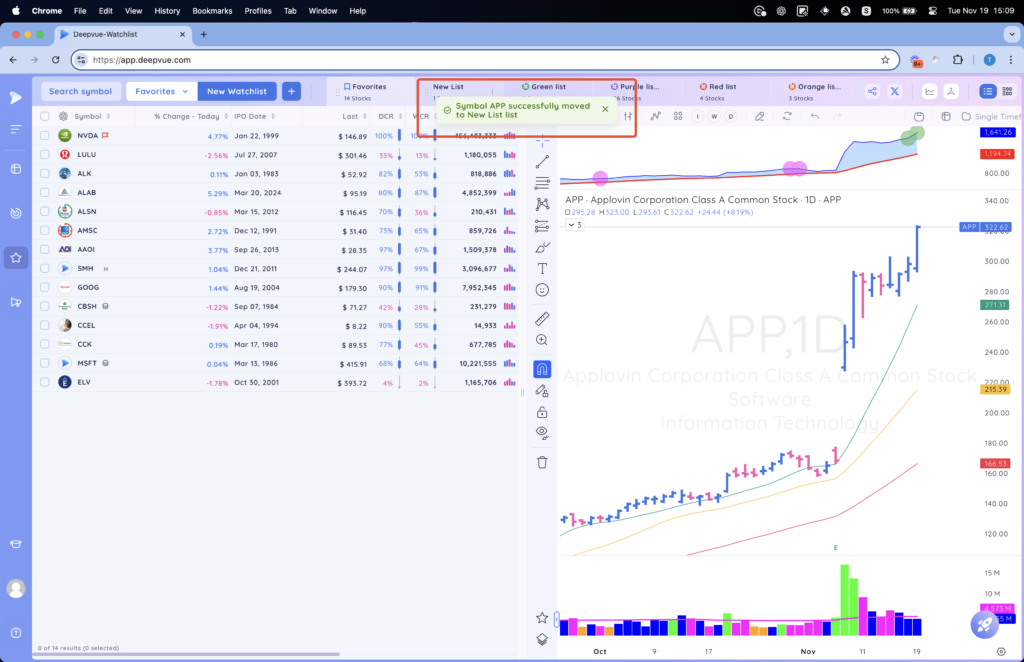
To move multiple symbols from one list to another list, follow the same steps using the checkboxes to select multiple symbols.
The drag and drop within a watchlist also works in Watchlist apps on the Dashboard. However, you cannot drag and drop between Watchlist apps on the Dashboard.