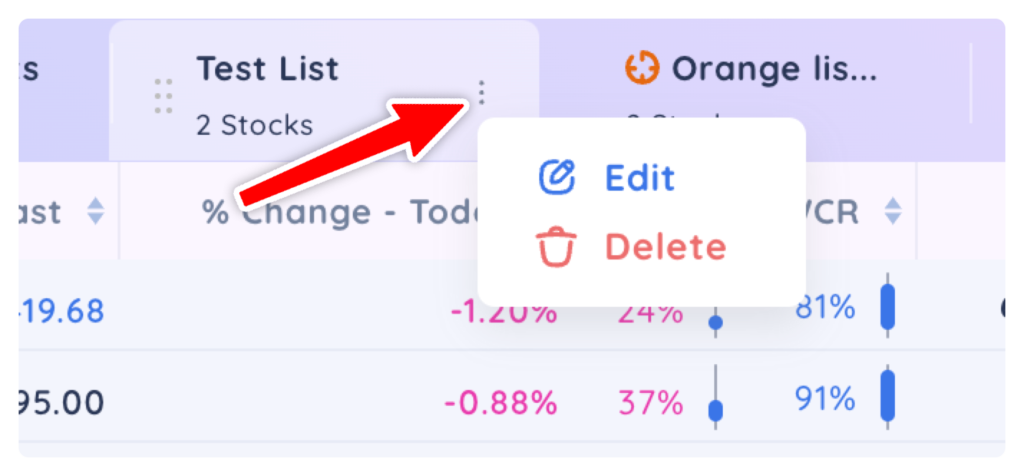
Click on the Watchlists tab on the left navigation menu, then click ‘New Watchlist’ at the upper, left of your screen.
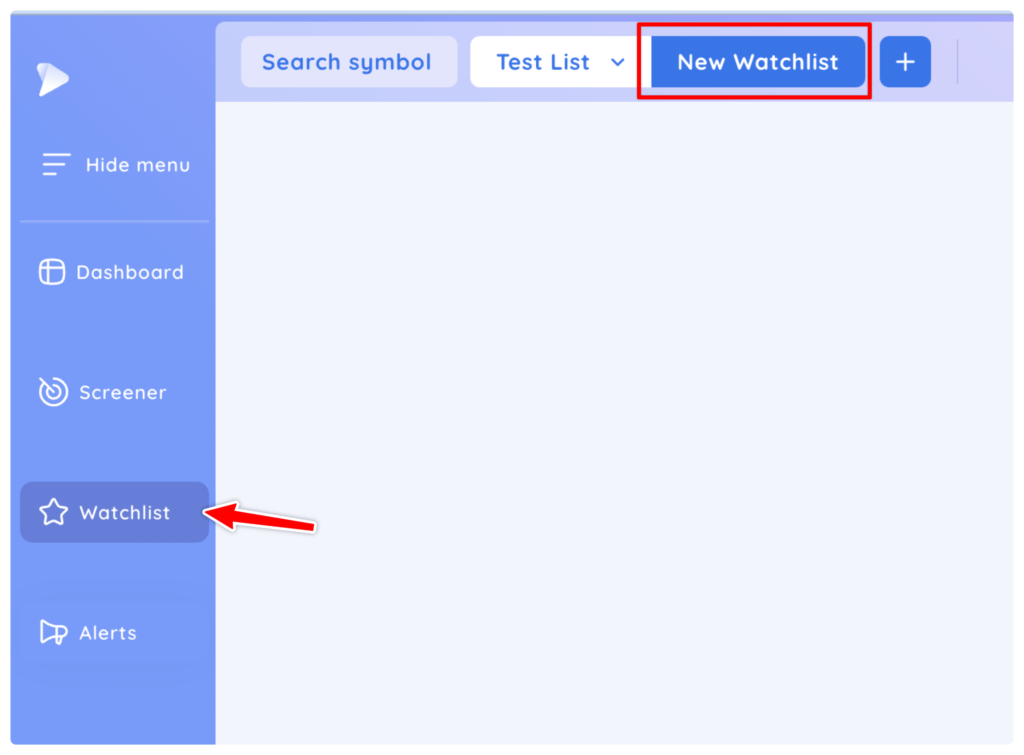
Name your Watchlist. You also have the option to save it into a folder, create a new folder or add a description. Click ‘Save’ when you are done.
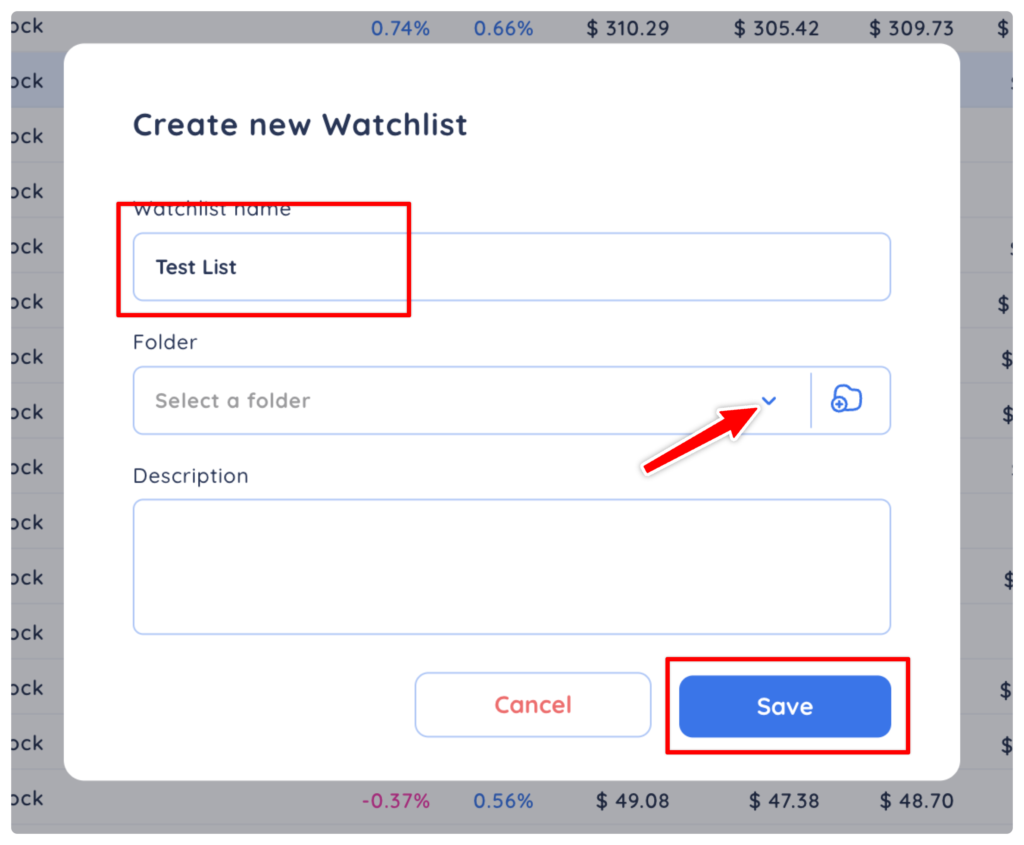
Your newly created ‘Watchlist’ will appear in the My Watchlists dropdown menu at the top.
Now click ‘Add Symbol’ in the centre of the empty list or the blue + button.
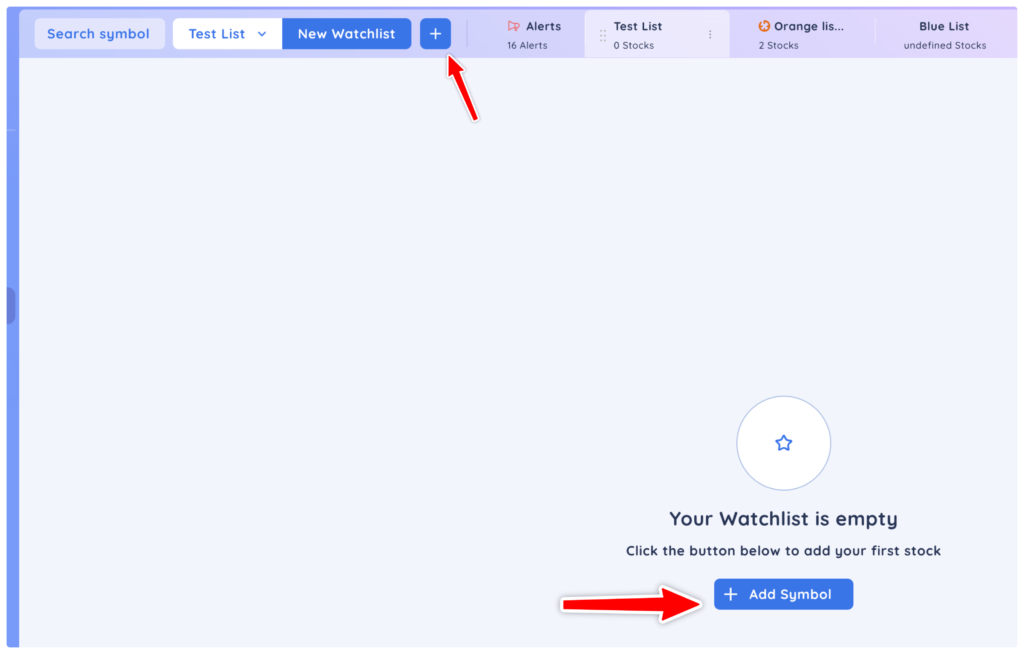
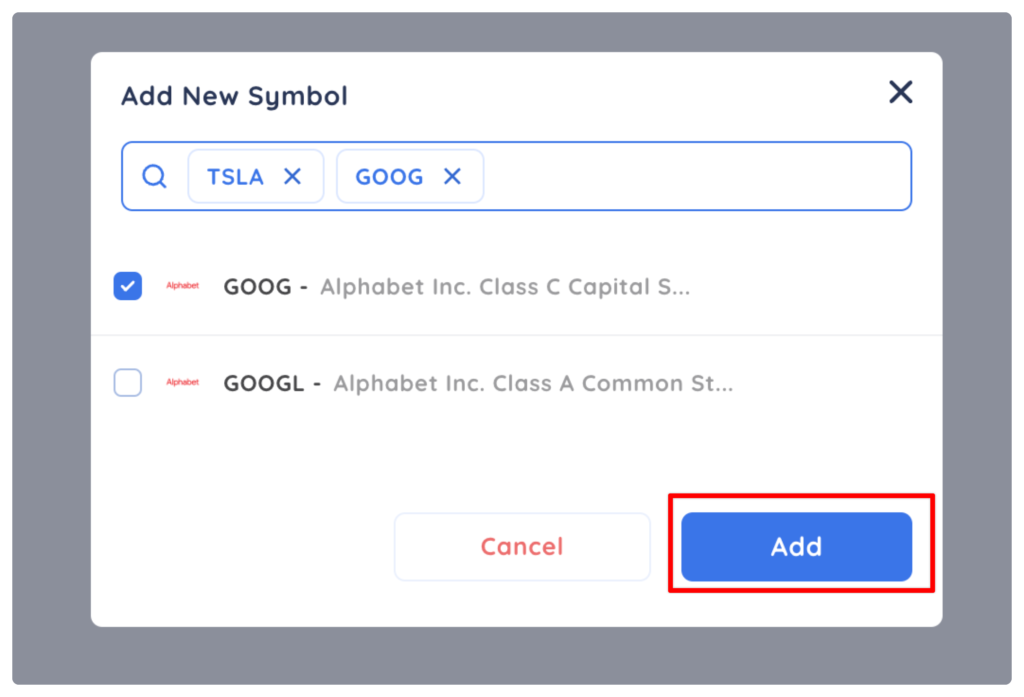
You can add symbols one at a time, or you can copy and paste a list of tickers from other applications. Click ‘Add’ once you are done.
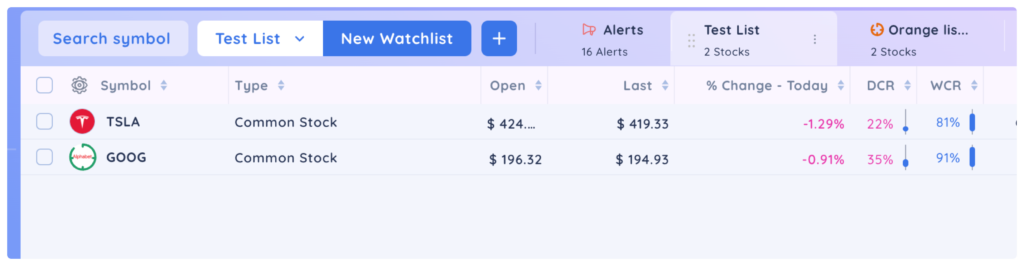
Those symbols have now been added to your list
How to delete/Edit a Watchlist
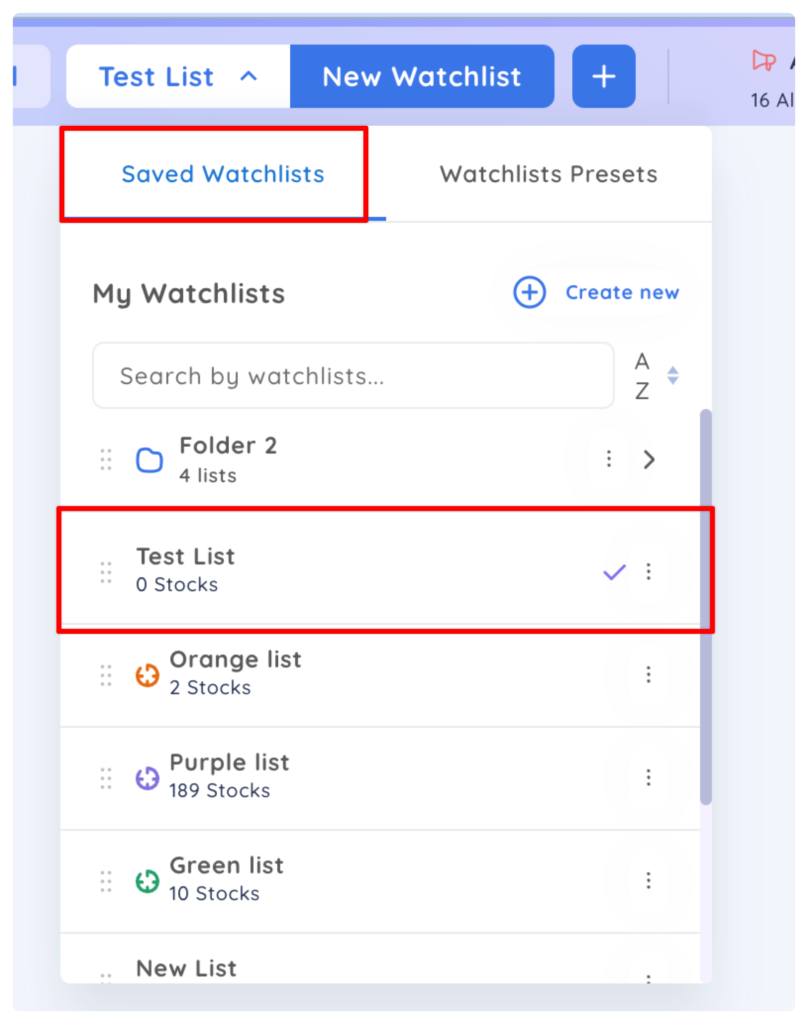
Click on the 3 vertical dots to the right of the list you want to delete/edit and choose your action accordingly.