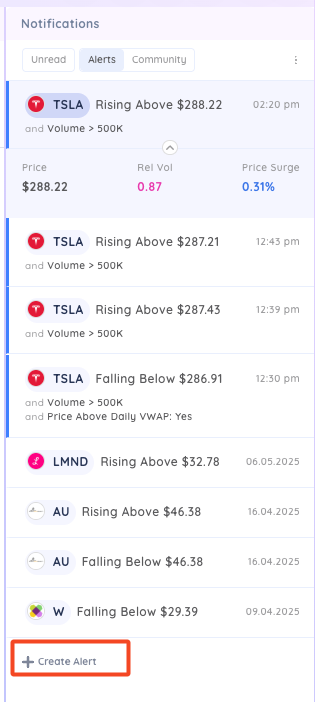
All notifications appear in the notifications panel on the right hand side of Deepvue. This panel is globally available in all modules.
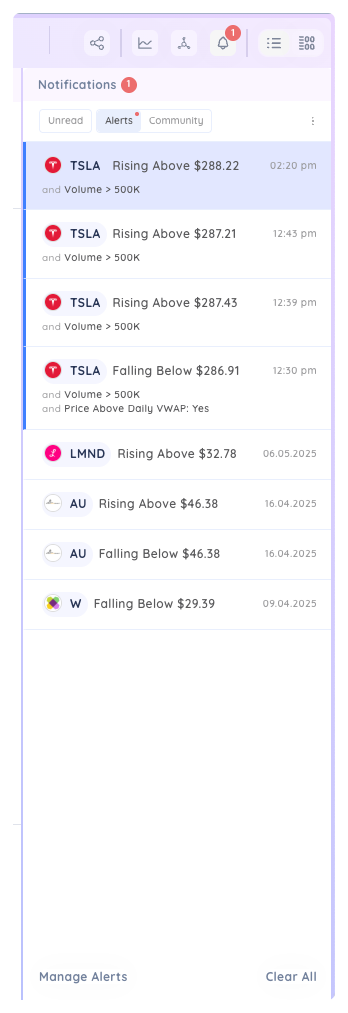
Open the notifications panel by clicking the bell icon. Close it by clicking the icon again.

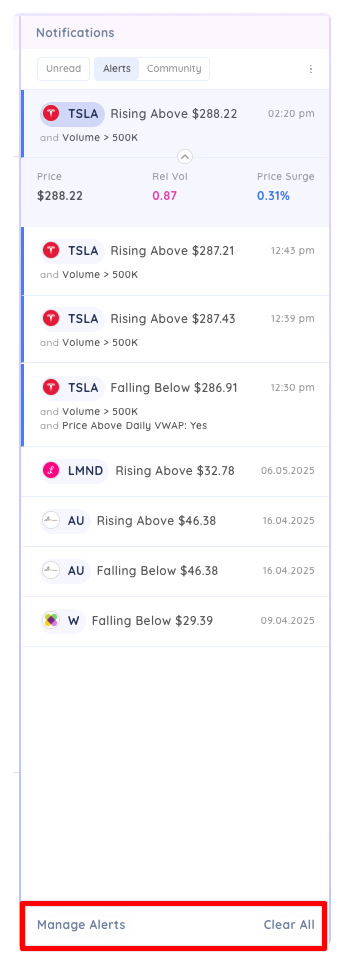
Unread notifications appear dark purple, the currently selected notification is lighter purple and read notifications are white. You can filter to see only unread notifications by clicking Unread.
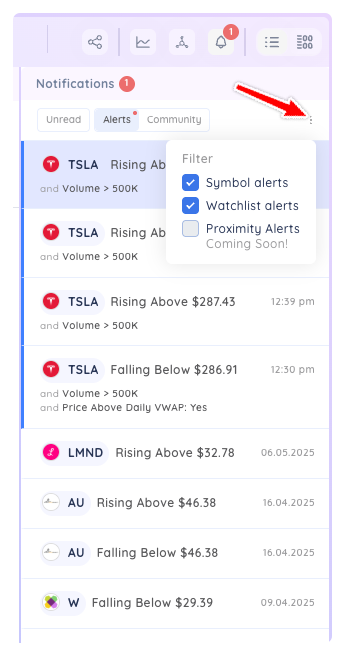
In the alerts tab, you can filter by alert type by clicking the options menu (3 vertical dots).
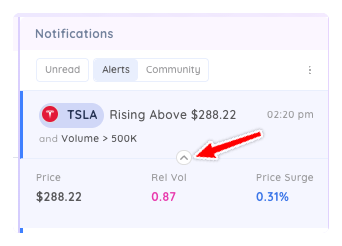
Click the arrow between notifications to see additional details about the notification.
Clear all notifications by clicking the Clear All button at the bottom. Clicking Manage Alerts will bring you to the Alerts watchlist in the Watchlist module.
You can create a new alert from within the panel by click the + Create Alert