You can set a trendline alert on any of these line drawing types:
- Trend Line
- Ray
- Extended Line
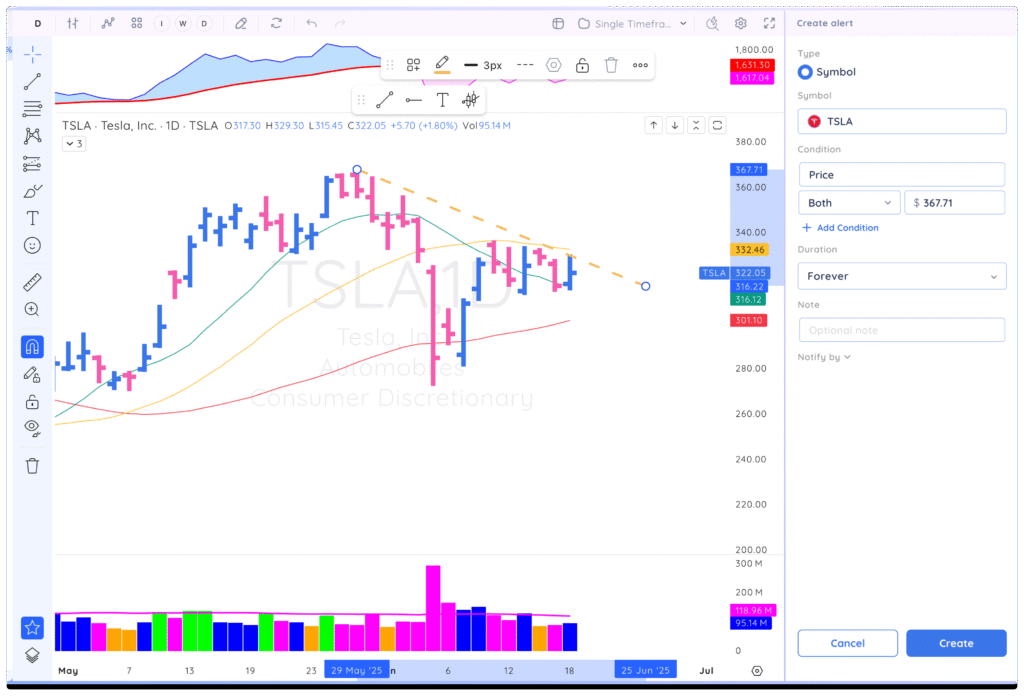
To set an alert, select the line drawing tool from the drawing tool menu and draw the trend line on your chart where you want the alert. Then, right-click on the line drawing and select Add Alert.
The create alert panel will open. Here you can set the alert type, add additional conditions, select duration, add an optional note and choose how you want to be notified when the alert triggers.
Note: If you set the duration to one-time, the alert will be deleted once it is triggered.
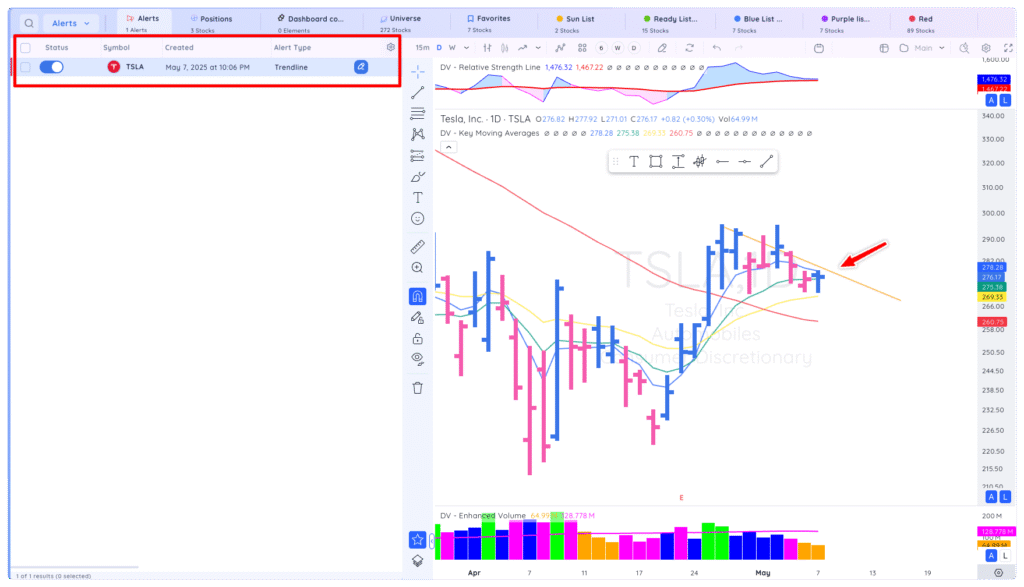
After you have entered the details for your alert, click Create. The trendline will then change to an orange line to distinguish it as an alert. The alert will also appear in the alerts tab in the Watchlist module.
To edit the alert you can click on the pencil icon in the alerts tab in the Watchlist module or click on the trendline on the chart.
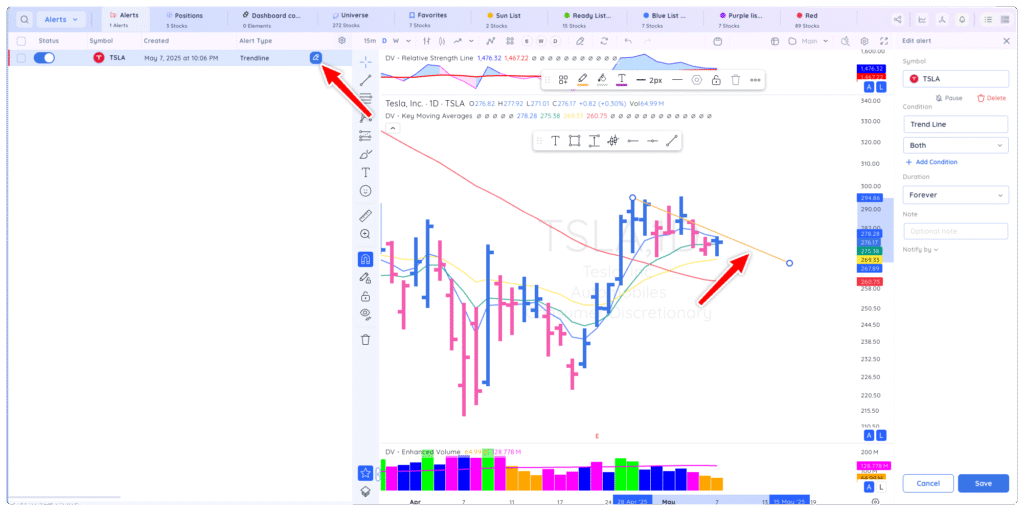
If the alert has been previously triggered, reactivate it by clicking Restart icon. When you are done editing your alert, click save.
Note: Triggered alerts change to a grey dashed line instead of orange.
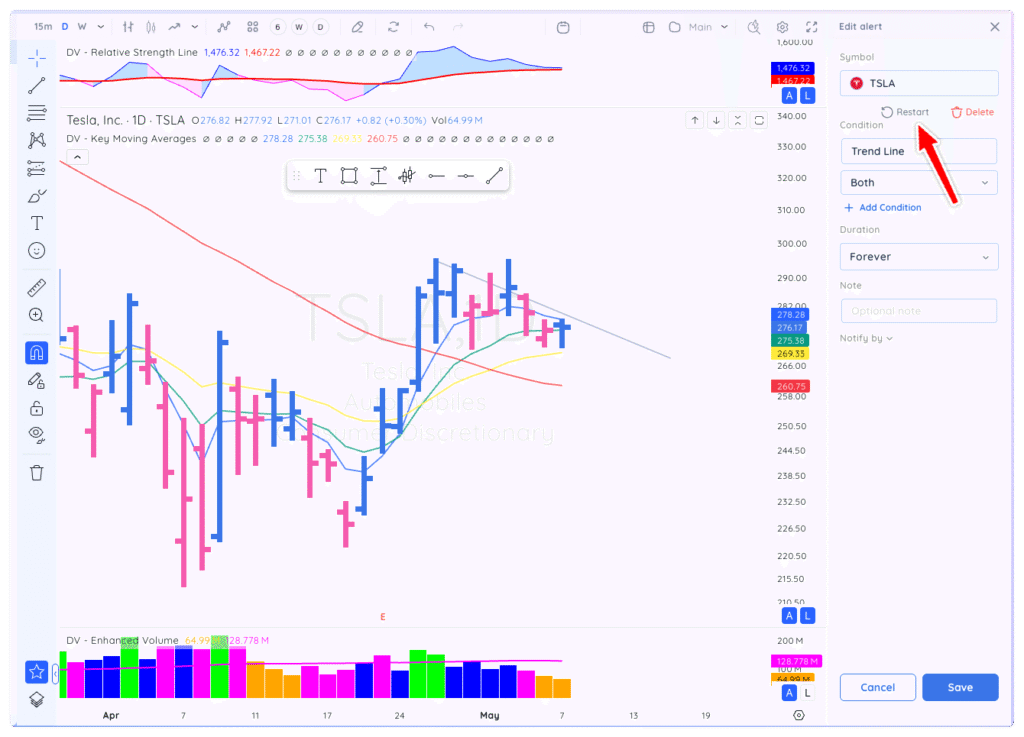
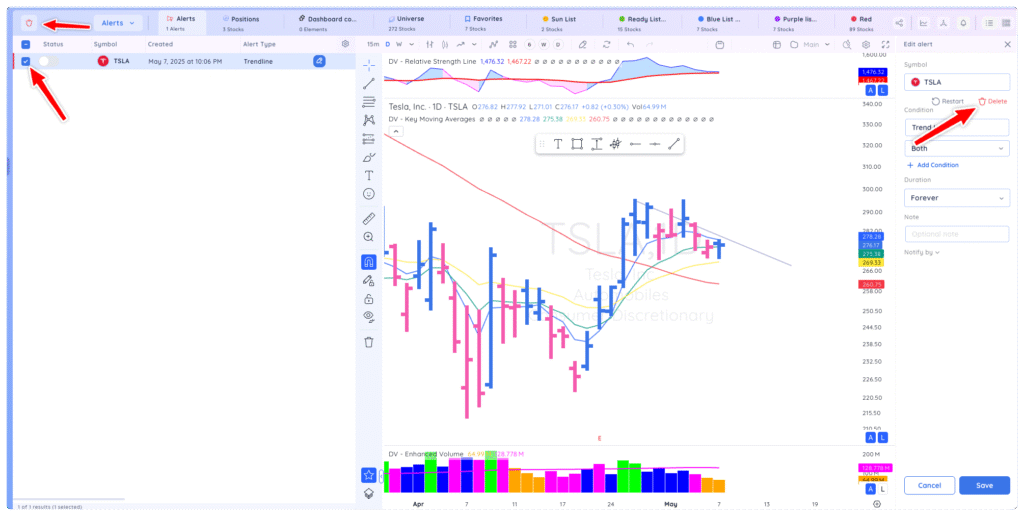
To delete an alert, you can either delete it from the alerts tab in the Watchlist module by selecting the alert with the checkbox then clicking the trashcan icon. Alternatively, click delete in the edit alert panel. Deleting an alert from a trendline only deletes the alert but leaves the trendline.